
The team subscriptions allow shared access to a workspace, where levels of access can be set with four user roles. The roles help simplify and streamline using Kahoot! at scale. Learn about inviting others to your shared workspace here.
Quick links
- Table of feature access per role
- Description of each role
- How to adjust your workspace's default role
- How to adjust someone's role
- How to transfer the ownership of a subscription
Table of feature access per role
|
Features |
Owner* |
Admin |
Member** |
Limited member |
|---|---|---|---|---|
|
Workspace access |
|
|
|
Limited*** |
|
|
|
|
Personal only |
|
|
|
|
Personal only |
Personal only |
|
|
|
|
Limited |
||
|
|
|
|
||
|
Host workspace games |
|
|
|
|
|
Edit workspace kahoots |
|
|
|
|
|
Manage visibility of workspace reports |
|
|
|
|
|
|
|
|||
|
|
|
|||
|
|
|
|||
|
|
||||
|
|
||||
|
|
||||
|
|
||||
|
Assign workspace roles |
|

Note*: The owner starts the subscription, thereby creating the shared workspace (not all subscriptions create a shared workspace). They can invite users to their shared workspace and assign different workspace roles after users accept the invite.
Note**: Once a user accepts a workspace invite, they are a member by default. If needed, the owner can assign a different workspace role to them.
Note***: Limited members can only see workspace content that's shared with workspace groups to which they're given access.
Description of each role
Owner
The owner has the highest level of access. Only they can access and manage billing matters; add more licenses; assign admin privileges; view and download invoices; and upgrade, downgrade, or cancel a subscription.
Admin
An admin can access all features and functionality, except for permissions reserved for the owner. They can invite and remove members from the team (based on the number of licenses set by the owner), set user roles; create and edit workspace groups; change the team’s name and logo, and access any kahoot in the shared workspace.
Member
This is the default role during onboarding. Members can access every section of the platform, but they cannot extend invitations or purchase licenses. They can edit workspace groups; host, assign, and edit any kahoot in the shared workspace; and view advanced visual reports.
Limited member
A limited member does not have access to all the shared workspace's kahoots or shared space. They can be invited to workspace groups and have their own folder within the shared space. They can host, assign, and edit kahoots shared with them but can only see reports of their own kahoots.
How to adjust your workspace's default role
Once someone's accepted an invite or been approved to join your shared workspace, they will be assigned to your workspace's default role. This can be changed by owners and admins to Member or Limited member. If anyone needs to be promoted to Admin, this will need to be done by an owner or admin after they're part of the workspace.
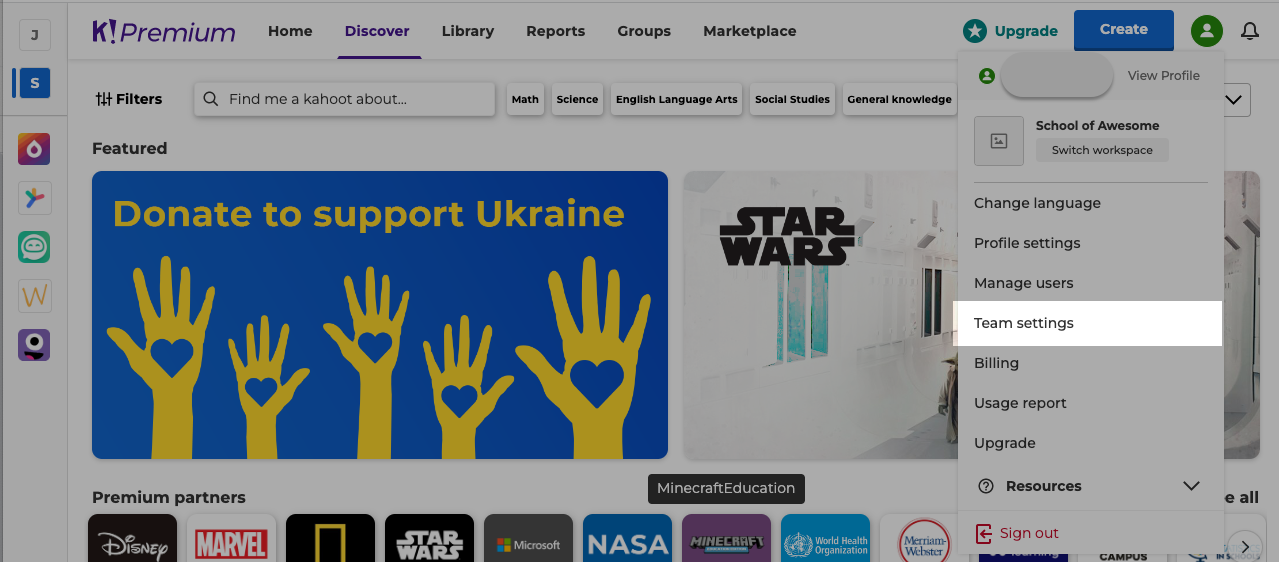
- Open the settings menu and go to the Team settings page.
- On the Team details tab, adjust the Default role in the Member roles section.
How to adjust someone's role
Once someone's accepted an invite or been approved to join your shared workspace, they will be assigned to your workspace's default role. If anyone's role needs to be changed after joining, owners and admins are able to do so.
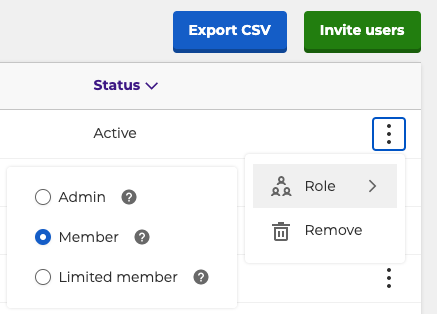
- Open the settings menu and go to the "Manage users" page.
- Find the person's username in the user list and open the options menu to the right of their status.
- Hover over the "Role" option and choose a new role for them.
How to transfer the ownership of a subscription
Transferring the ownership of a subscription is an involved process due to strict privacy policies.
You can find the help article about transferring subscriptions here.