
Shortcuts:
How to find a report
Your Reports view shows different content depending on the currently active workspace. This is why it’s important to be mindful of the current workspace you are navigating. Each of the workspaces has its own Reports view. If you cannot find your report, try checking other workspaces using the left-side panel.
The owner of the workspace can change access to the reports in the Team settings.
If signed in at https://kahoot.com, click Reports in the top navigation bar.

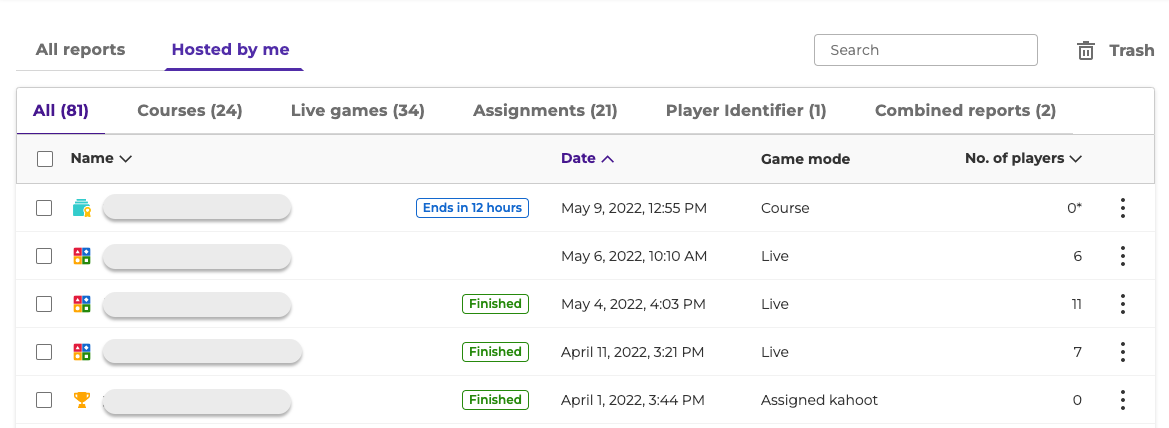
If you are the owner, admin, or a member of a shared workspace with an active subscription, you can choose All reports, which shows reports from both you and other members, or Hosted by me.

Reports can be filtered by All, Courses, Live games, Assignments, Player Identifier, or Combined reports. They can be sorted by Name, Date, Game mode, Created by, or No. of players. Click on a desired filter or sort option to adjust the list of reports.
Do you want to locate a deleted report? You can find out to find and restore it here.
How to use a report
Reports are broken down into 4 sections:
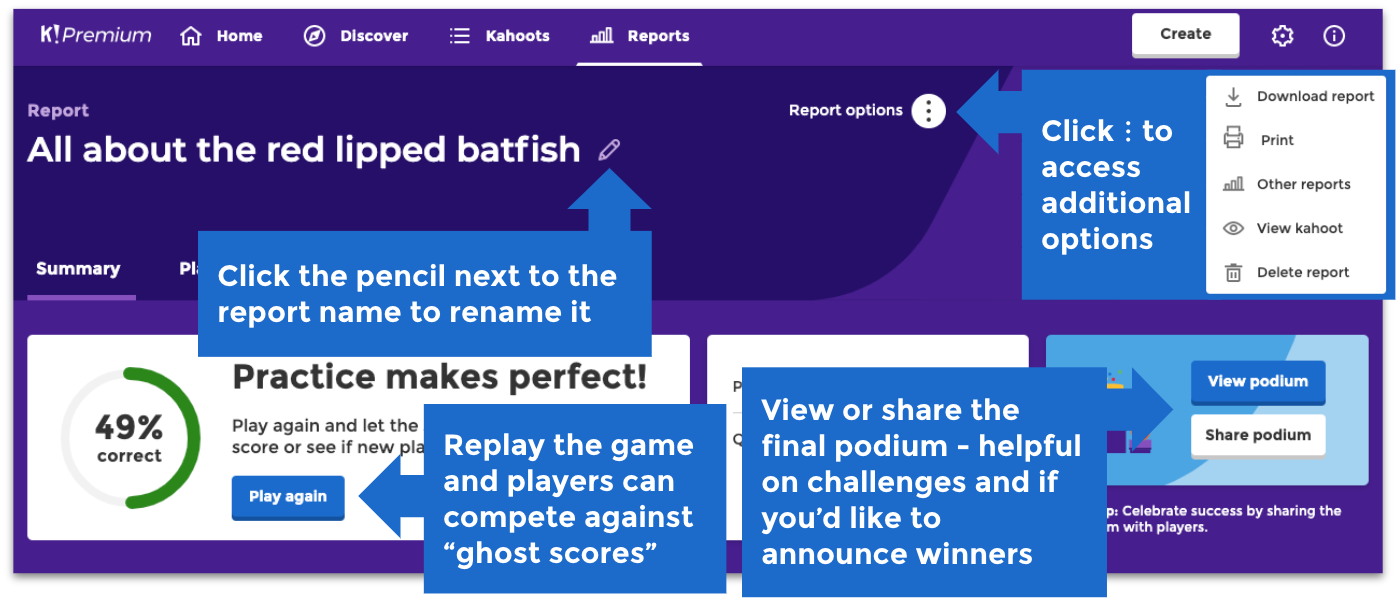
On the report page you can:
- Rename report by clicking the pencil icon next to the title
- Download report by clicking the three vertical dots next to Report options
- Print report by clicking the three vertical dots next to Report options
- View Other reports from this kahoots by clicking the three vertical dots next to Report options
- Delete report by clicking the three vertical dots next to Report options
- Play again
- View and share podium
Summary
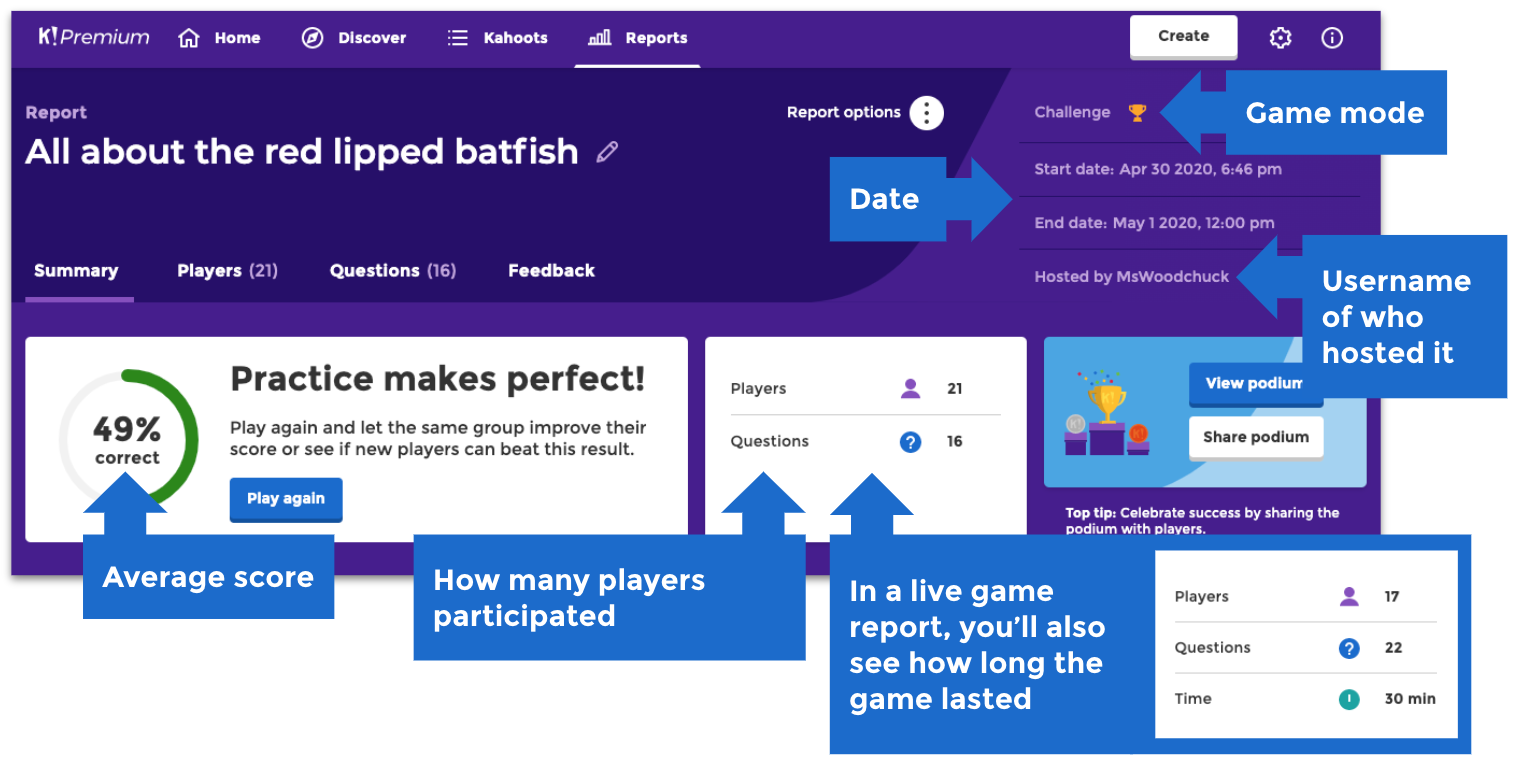
Here’s what you can see in the Summary section of a previous live game or assignment.
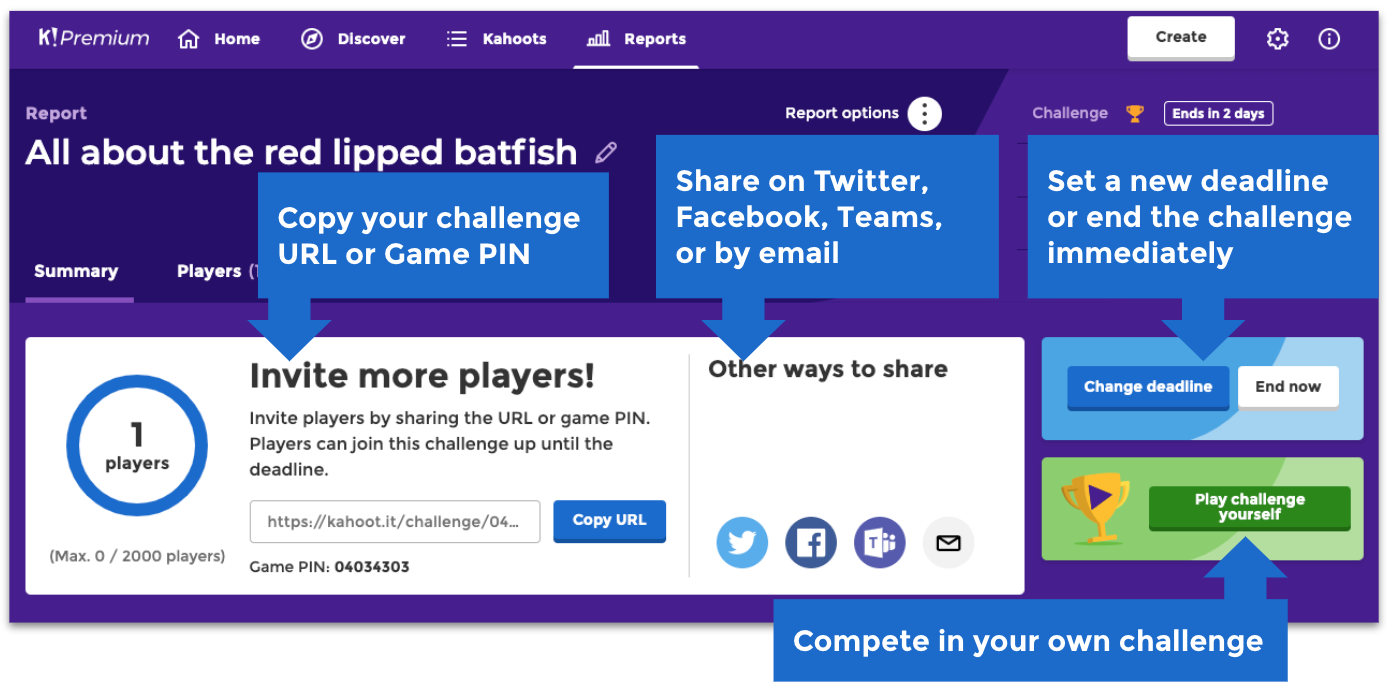
Here’s what you can see in the Summary section of an active assignment.
The bottom three sections give you valuable actionable insights.
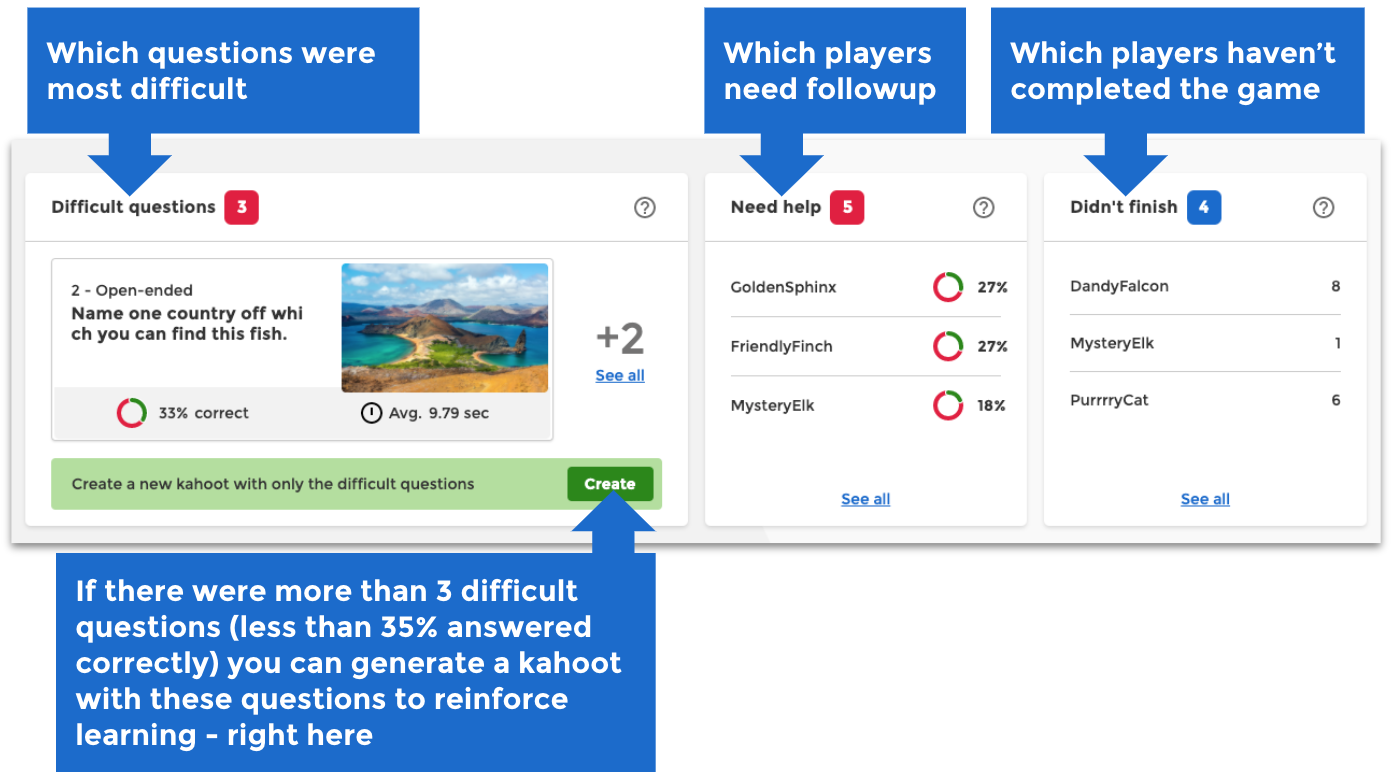
Players
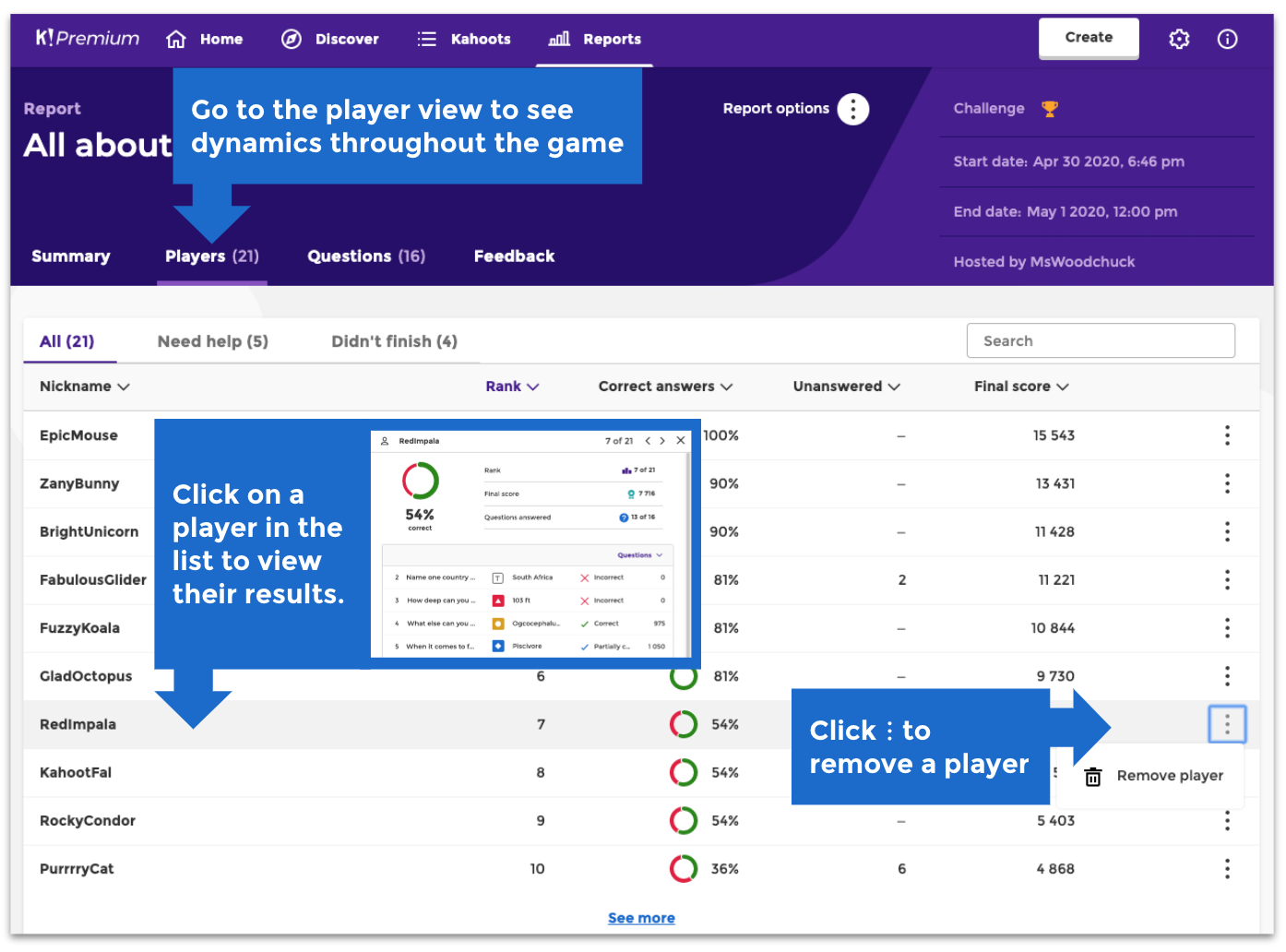
Click on Players to see a detailed leaderboard with correct answers (%), unanswered questions, and final score. You can click on a player to view their results.
If it's a report from an assignment, you can also click ⋮ on a player to remove them. It's not available for live game reports.
It's not possible to rejoin a session with the same nickname, even if the player was removed from the session's report.
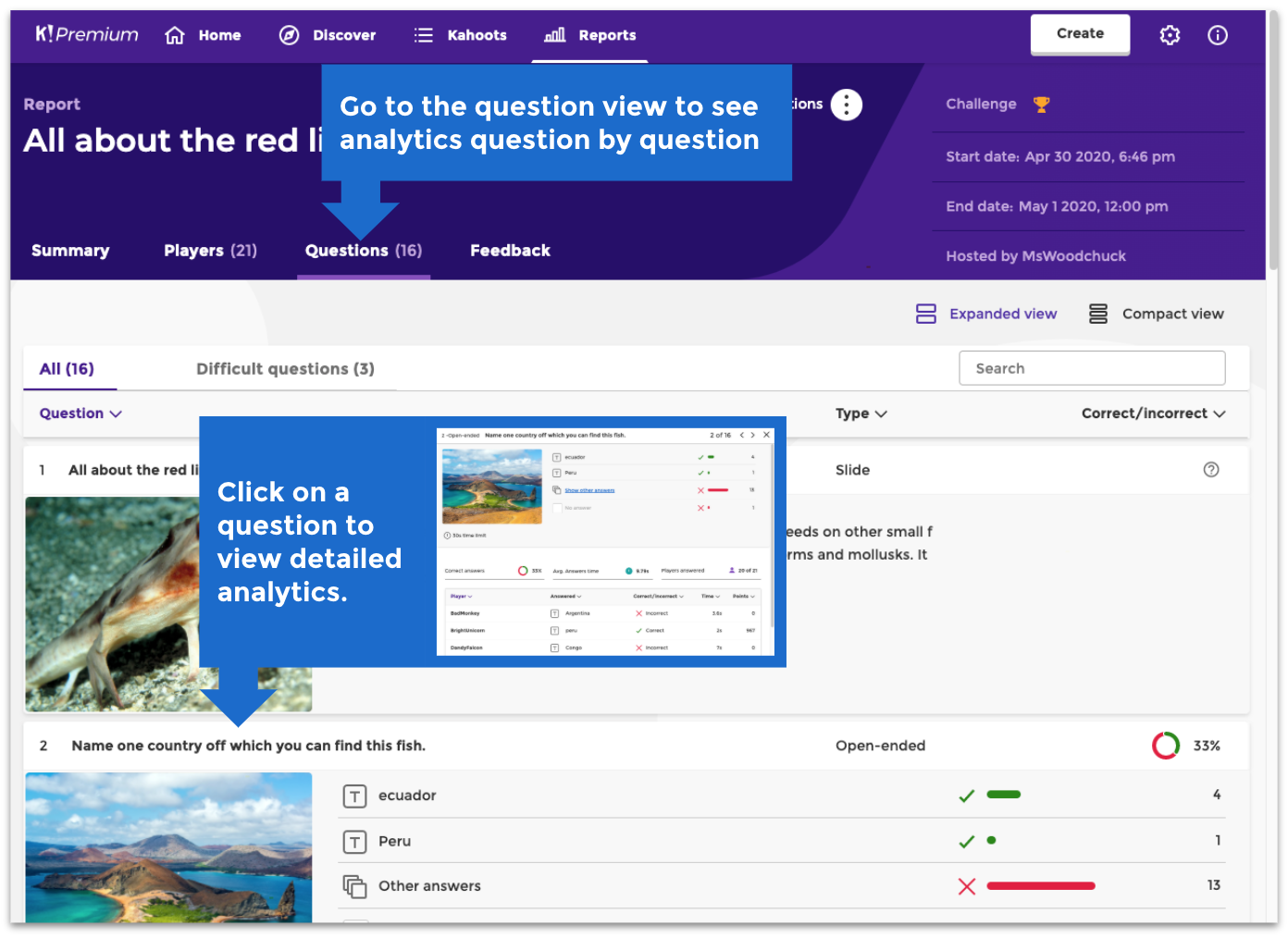
Questions
You can look at analytics question by question to see how the entire group performed.
Feedback
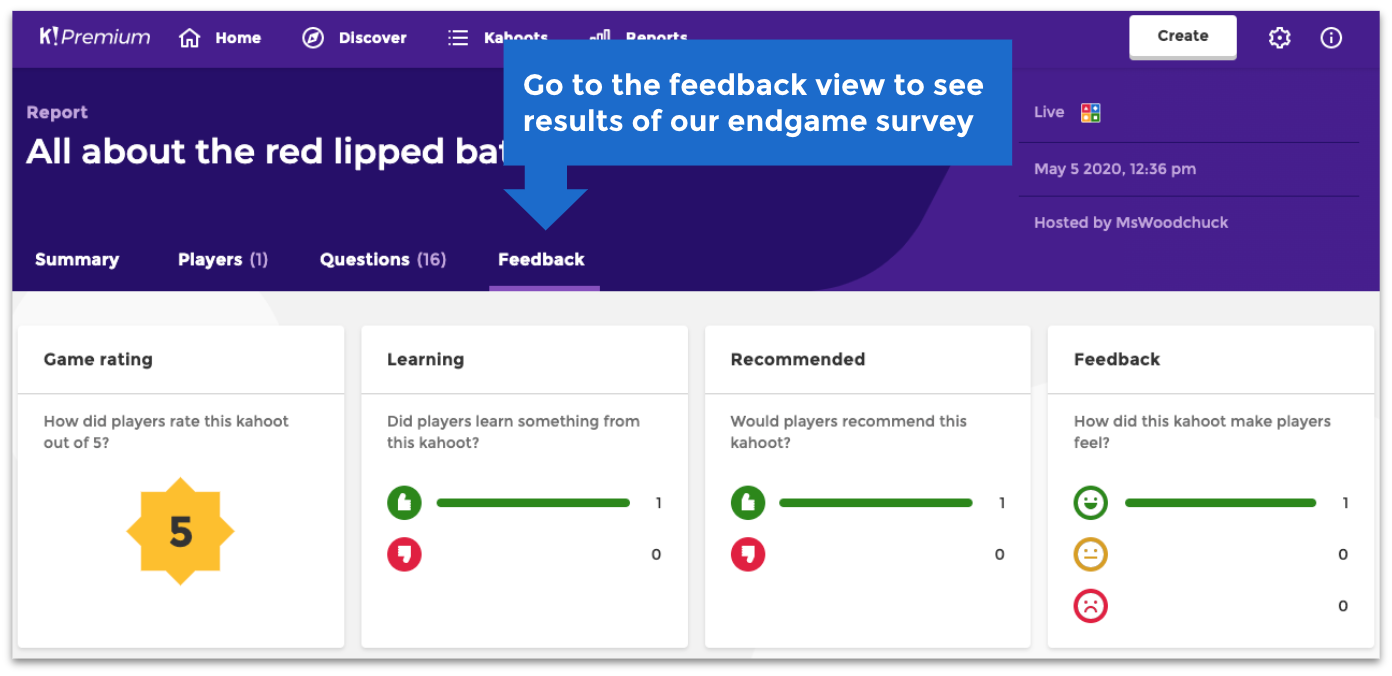
The "Get feedback" option is not available when you're hosting via our mobile app.
At the end of a live game, click  to send out a standard feedback survey to players. Responses will be aggregated here.
Missing a report?
Contact us and include the following details:
- The account username you were signed in with
- Title of the Kahoot that was hosted
- URL to this kahoot's details page
- When was this particular game played?
- How many players joined?
With those details, we'll search our logs to see if I can find the missing file.
|
💡 Next steps 💡 ➡️ How to find endgame reports in the mobile app ➡️ Guide to Kahoot! reports API 💡 Read more 💡 ➡️ How can my players see questions and answers on their devices? |