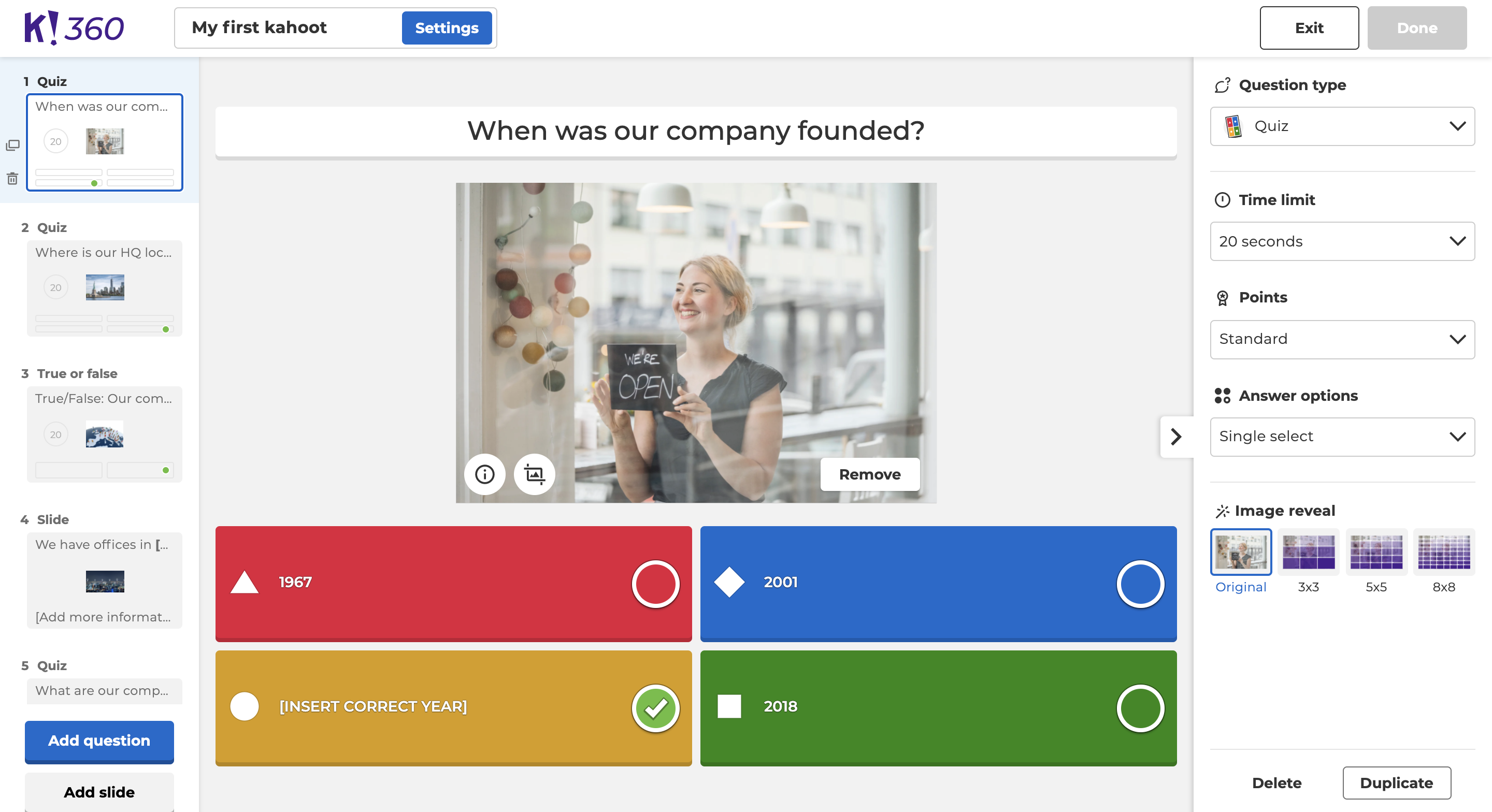
Not sure how to get started on a Kahoot! game or just looking to save some time? Our pre-designed templates are tailored for various common use cases, and will guide you through the creation process. When you create a new kahoot, you can choose a template to preload “fill-in-the-blank” questions and slides and then edit them.
When using templates, please be aware of the following:
- Some contain advanced features requiring an upgrade.
- You can only use one template per kahoot.
- You can only use templates when creating a new kahoot, not editing existing kahoots.
- Templates cannot be removed or replaced once added, though questions can be deleted individually.
How to choose a template
When you create a new kahoot, you’ll be prompted to start from scratch, or choose a template. Click the “New kahoot” create button to continue without a template, or click on a template to preload relevant questions and slides.
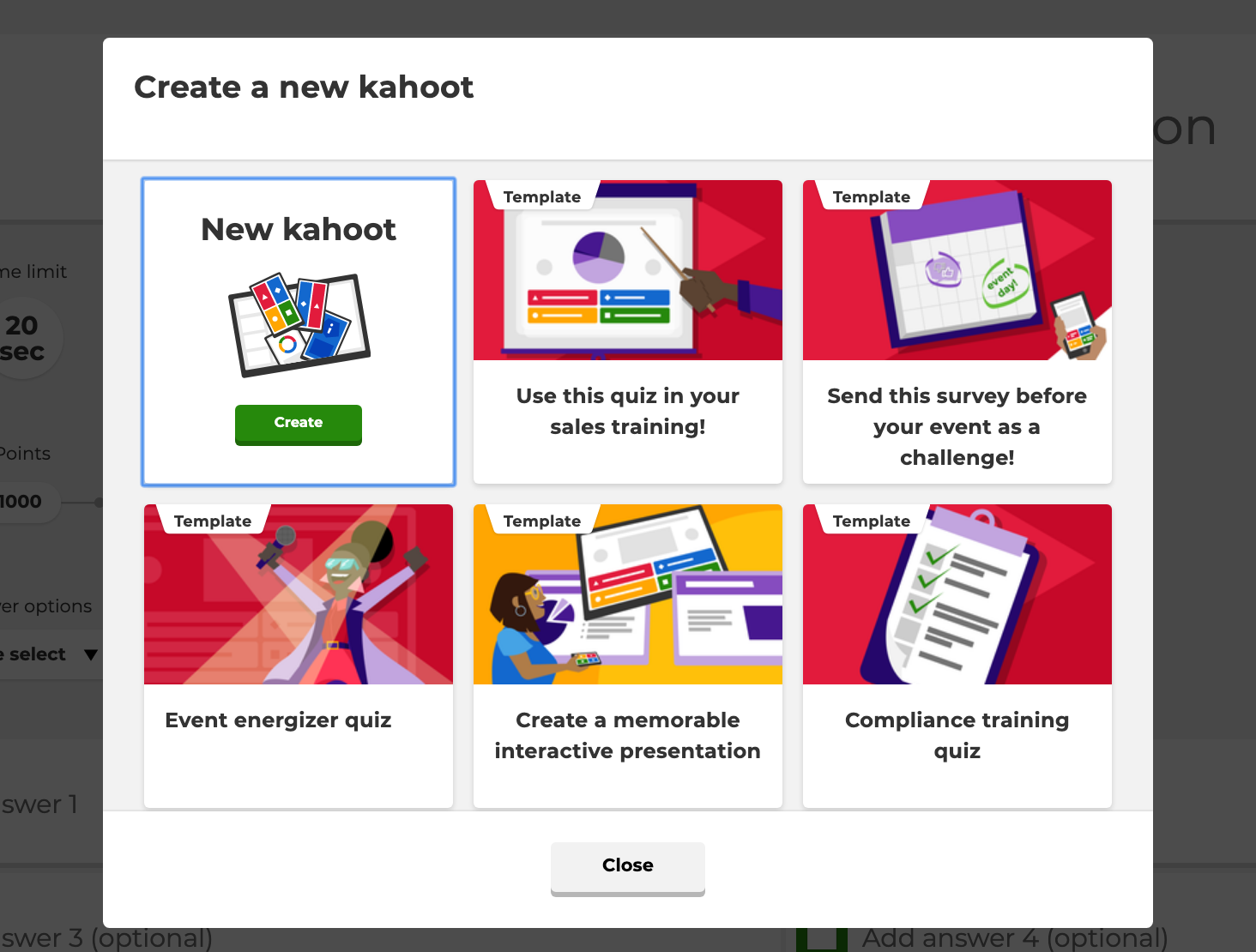
How to edit a template
After you click on a template, you’ll find sample and “fill-in-the-blank” questions and/or slides preloaded into your new kahoot. Each one demonstrates a new way to frame questions or guide your game. The pre-filled information is completely customizable, as if you created the kahoot from scratch. You can edit or remove questions, or add more questions.