
Kahoot games bring people together, and our users are finding more creative ways to play - especially with online groups and channels. We’ve been working to streamline the user experience with our product in different channels. As a result, we’ve released an app for Microsoft Teams that enables Kahoot! users to assign kahoots and play live games to teach or present.
Instructions to use the Kahoot! Microsoft Teams app extension:
How to add the Kahoot! app extension in Microsoft Teams
| NOTE: You must be an admin in Microsoft Teams to find and add this app. |
-
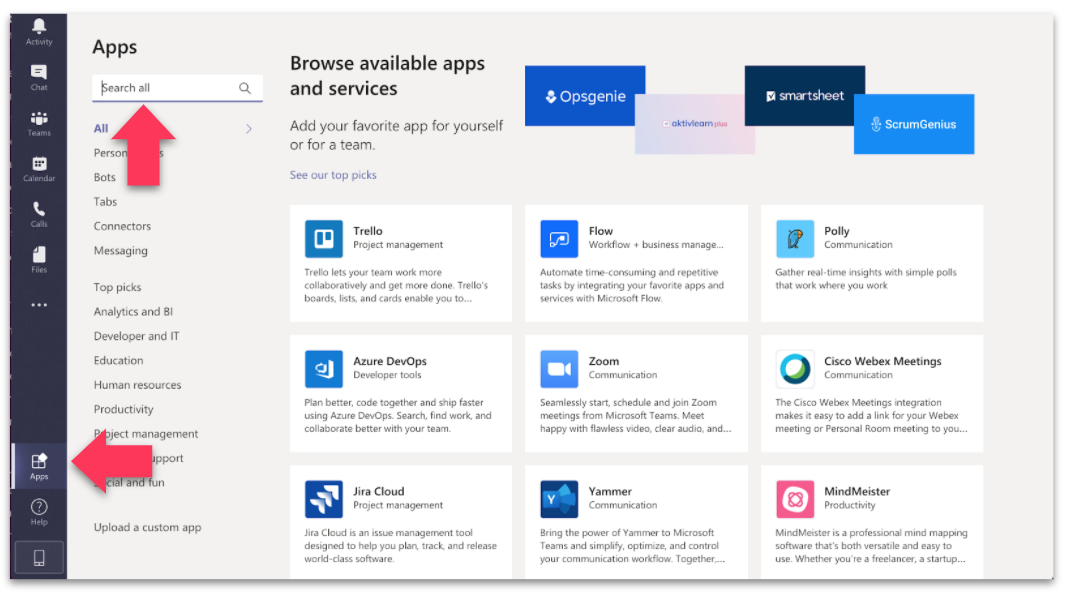
Click “Apps” and search “kahoot” in the app directory.
-
Select the Kahoot! app and click the Add button.

-
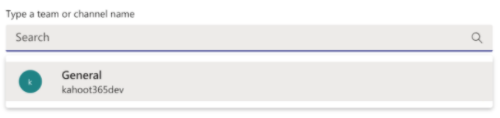
Select which group you’d like to be associated with the Kahoot! extension.
-
Log in to your Kahoot! account.

-
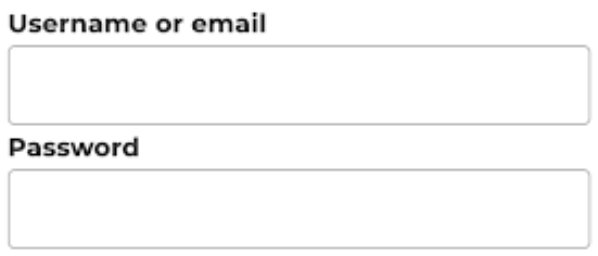
Enter your Kahoot! credentials.
|
NOTE: This app extension applies on a per-group basis. This means if you have multiple groups, you’ll need to add this extension multiple times |
Access your kahoots
-
After installing and providing your credentials to the Kahoot! app, your kahoots will appear under the newly discoverable Kahoot tab.
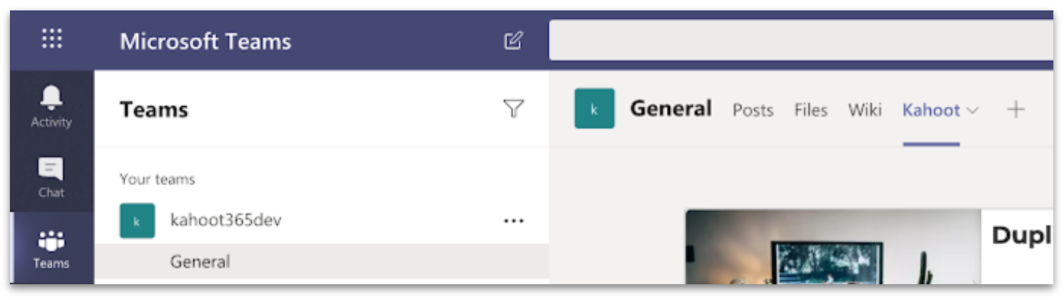
- Under the tab Kahoot you’ll see a list of your kahoots and the ability to launch a live game or assign a kahoot.
Present a live game
-
Select the kahoot you would like to play as a live game under the Kahoot tab.
-
Choose to play a live game by clicking Present.

Assign a kahoot in your Microsoft Teams’s group
- Select the kahoot you would like to assign under the Kahoot tab.
-
Choose to assign a kahoot by clicking Assign.

- Set a date/time for your assignment to end and adjust options as needed, then click Create.

-
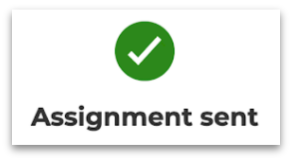
A confirmation prompt will verify you’ve sent your assignment in the channel where everybody can click and join.
Assignments in workspace
-
Members in the channel can click Open Assignment to complete the assignment within Microsoft Teams.

-
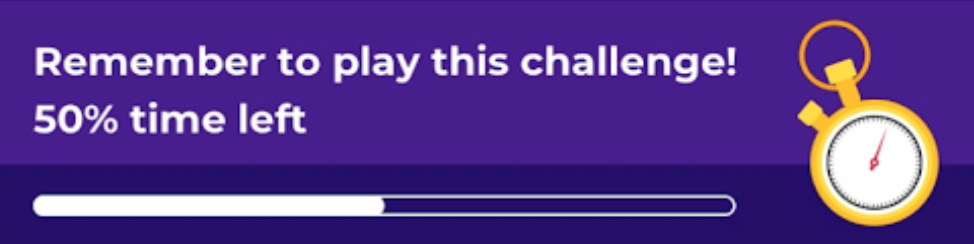
The channel will receive notification after 25%, 50%, 75% of the time limit has passed, as well as when the assignment ends, or, if the assignment time limit is less than 24 hours, at 50% and when the assignment ends.
Final leaderboard & report
-
When the assignment finishes, a message will be sent to the channel with a button to open the podium - anyone in the channel can open and view it!
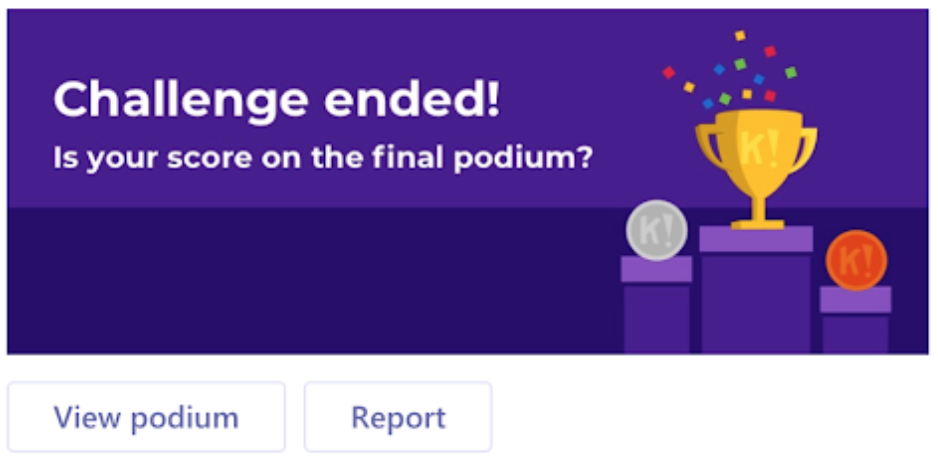
- The host can view the final report by clicking on a Report button. This will redirect them to their Kahoot! account to view the report in its entirety.
FAQ
Will my Teams identity be displayed in reports?
No.
Do I need a Kahoot! account to play a game in Teams?
No.
Can I use player identifier in Teams?
Yes. Players will still need to enter their identifier. This has nothing to do with their Teams login.
Can players see teamspace kahoots in a Teams channel?
No. Only people with teamspace access will see them.