
|
➡️ This article covers creating and editing kahoots and questions on the web platform. ➡️ For instructions on how to create and edit kahoots in our mobile app, read this article. |
Shortcuts:
How to access the kahoot creator
- Log in to your account.
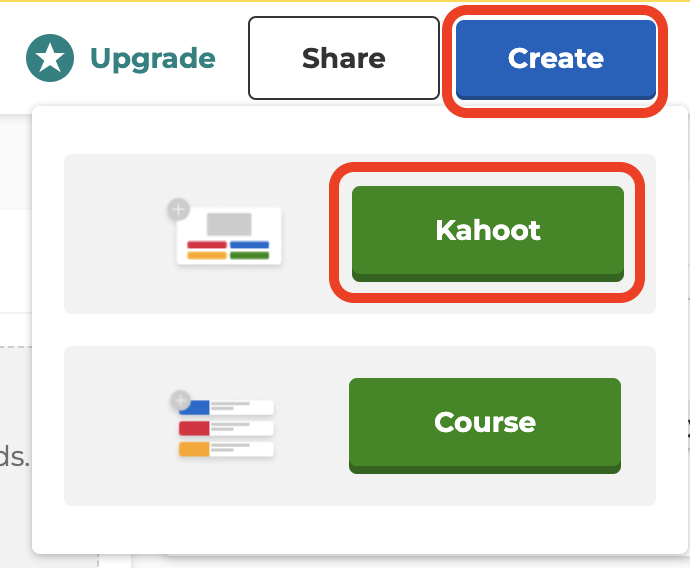
- Click the Create button on the right side of the top navigation bar.
- Select the Kahoot option from the drop-down menu.
- Once you’ve started creating a kahoot, you can navigate between questions and add new ones via the left-hand sidebar. You can create new questions from scratch, copy them from other kahoots, import slides from a presentation, or import quiz questions from a spreadsheet.
Your kahoot creator shows different features depending on the current workspace.
How to add questions
- Click the Add question button on the left-side panel below the questions you already added.
- Choose the question type.
- Type in the question. The questions from the Test knowledge section require you to provide the answers and mark the correct response (if applicable for the question type you selected).
🖌️ If you forget about an element of a question or you exceeded the character limit, an exclamation mark will appear on the left-side panel once you leave the question.
🖌️ Features marked with a star are not included in your current plan. If you use them, you'll be asked to upgrade to share, host, and assign your game. Read more about saving games.
🖌️ You can add up to 100 questions per kahoot.
🖌️ Read this article to learn about the different question types.
How to move, duplicate, or delete questions
- Click on a question on the left-side panel.
- Drag a question vertically in the panel to place it above or below another question.
- Click the duplication icon
 to duplicate a question.
 - Click the trash bin icon
 to delete a question.
|
💡 Next steps 💡 ➡️ How to add video to a kahoot |