
We recommend adding an image or YouTube video to support each question and increase engagement. You can also add a cover image that can help bring your kahoot to life.
This article covers:
For guidance on adding or editing images in our mobile app, read this article instead.
Adding images
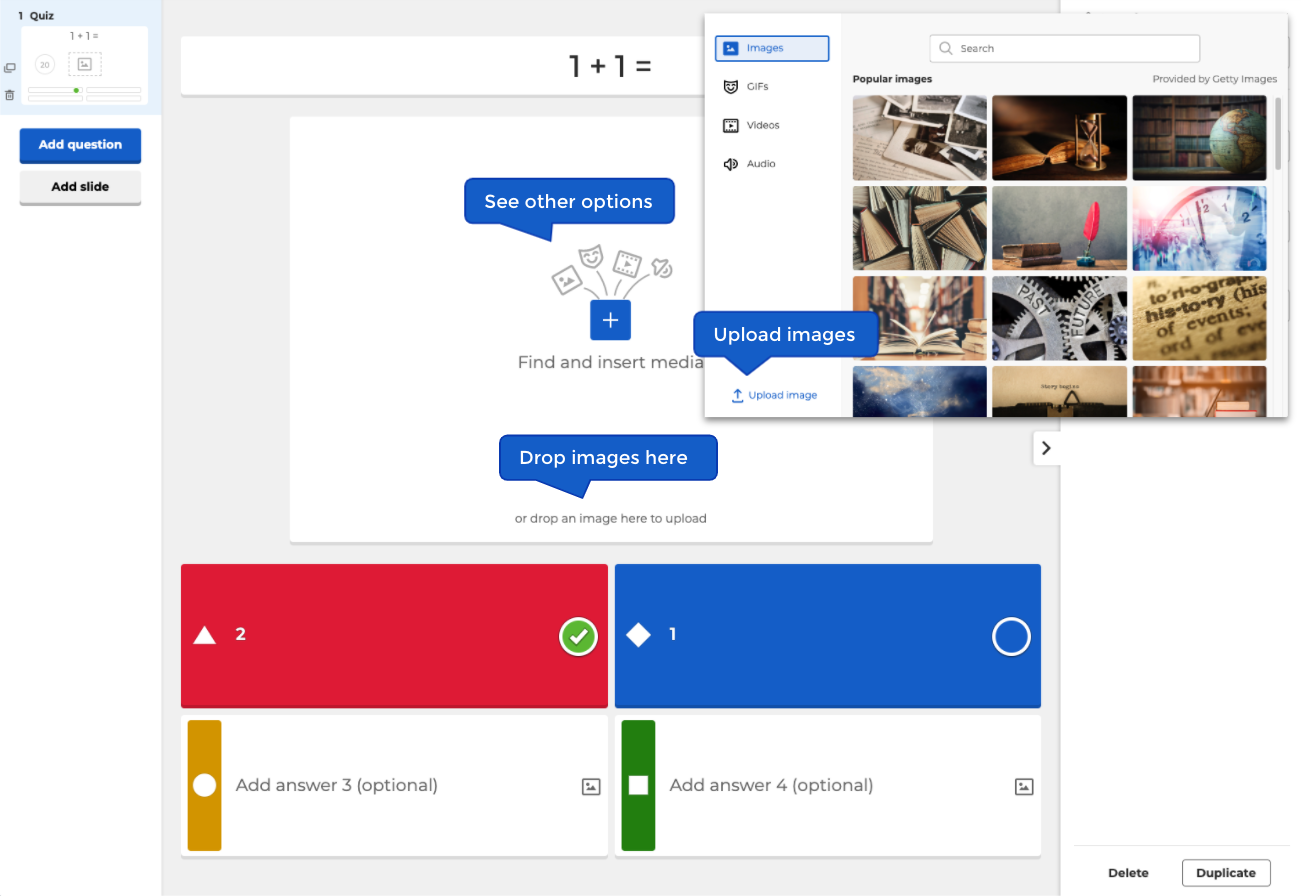
When editing a question, you can drag an image stored on your computer into the media box to upload an image. Or you can use the media button to find the upload image option and browse your computer for an image. Each question can only have one image or video.
When editing your kahoot’s summary, you can click “change” in the cover image box to upload images from your computer, or from our image library.
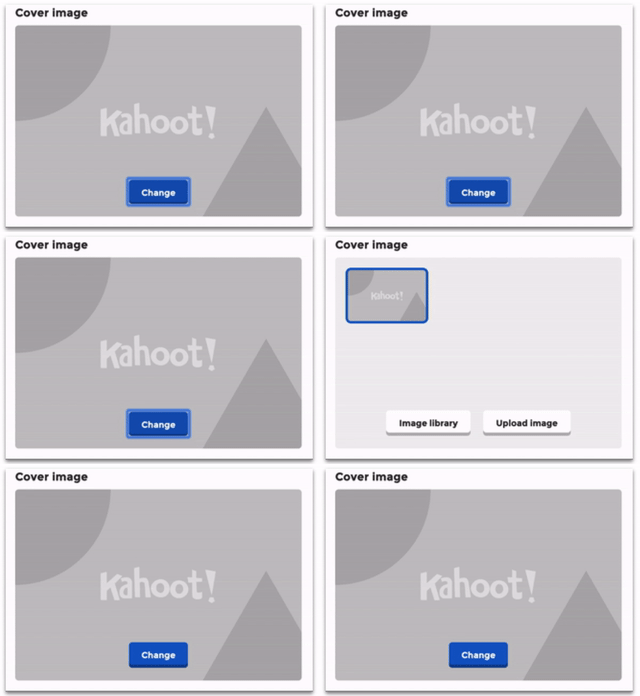
Uploading images
Nearly any image on your computer can be uploaded. There are a few limitations:
- They must be in PNG, JPEG, or GIF format, and in RGB color mode.
- They must be no larger than 10MB, and 5000x5000 pixels or less
To upload your own image, you can click the Upload image button and navigate your computer’s file explorer to locate an image. You can also drag and drop an image from your desktop or a folder into your question’s media box. After an image is uploaded, you can credit, crop, or remove the image.
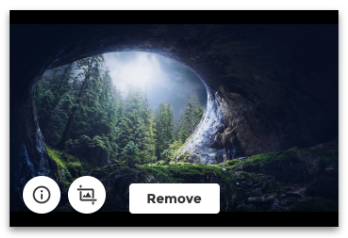
Image library
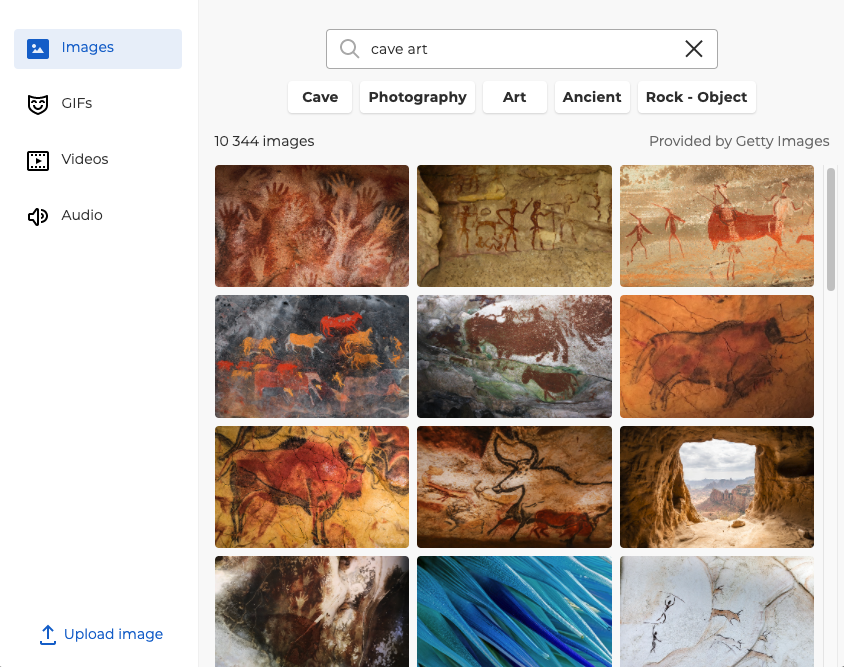
With select service plans, you can search among millions of images by keyword. Between the search bar and your search results will be several related tags. Click on tags to filter results. Selected tags will be moved to the far left of the tag list, where you can deselect them. Select service plans let you add up to 100 images from the library to each kahoot. Otherwise, you can add 1 image from the library to each kahoot.
GIF library
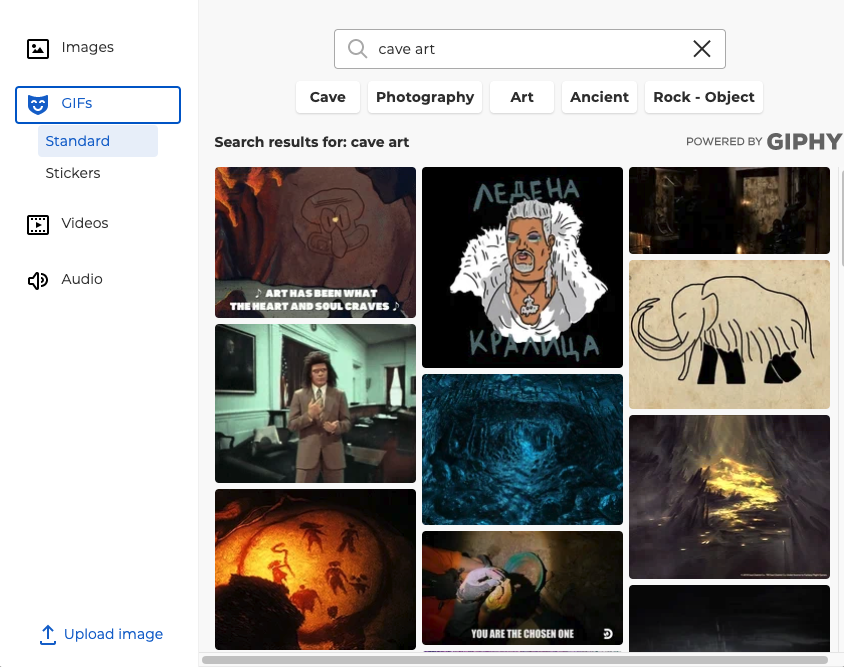
Use the GIFs option to search for fun animated images to add to your question! Between the search bar and your search results will be several related tags. Click on tags to filter results. Selected tags will be moved to the far left of the tag list, where you can deselect them.
Editing images
Image reveal effect
The availability of the image reveal effect depends on your plan level.
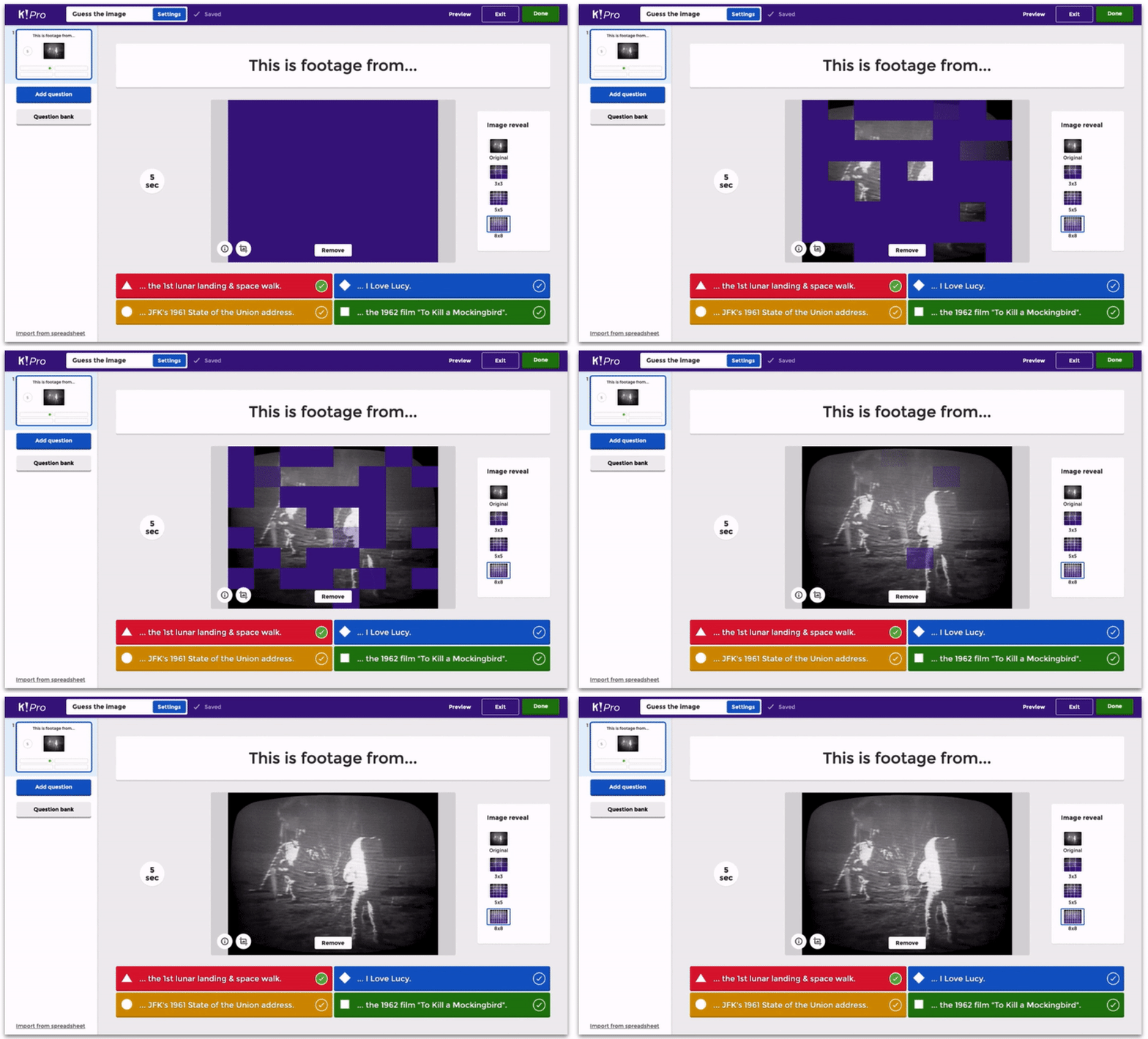
The image reveal effect can be added to quiz questions and true/false questions. This helps add a different dynamic to your game! After an image is added, you’ll see a set of “Image reveal” options to the right of the media box. Choose between original (no effect), 3x3, 5x5, or 8x8. The speed of this effect will vary based on the question’s time limit.
Credit a resource
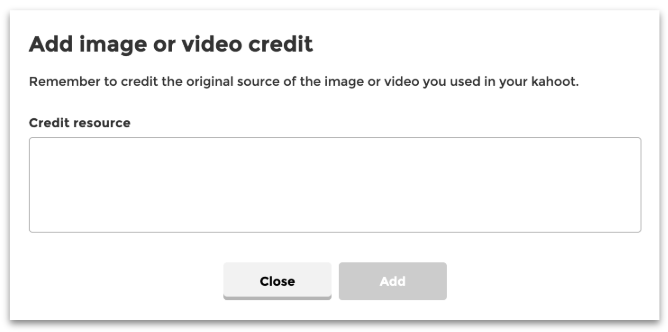
To credit a resource, click the ⓘ info button in the bottom-left corner of the media box.
In the credit resource field, you can input a web address or citation for the source of your image. You cannot edit the credit resources field when using an image from our image library, but you’ll be able to find out the photographer’s name and other related details.
Crop image
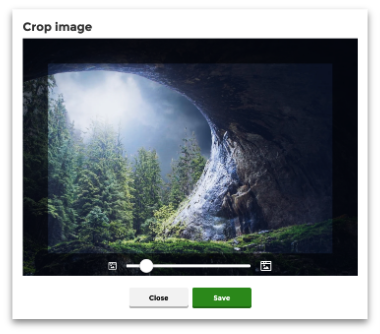
To crop an image, click the crop button next to the ⓘ info button. You can zoom in and drag the image before you save.
Remove image
To remove an image, use the “Remove” button next to the crop button.
|
💡 Next steps 💡 ➡️ How to add video to a kahoot ➡️ How to change a kahoot's visibility 💡 Read more 💡 |