
Trying to save a kahoot and seeing an error saying “Oops!”? Or did you try to invite someone to your org space and get a prompt indicating it failed? Whenever you see an error message or a button/link fails to do anything, there’s a good chance that your browser’s console can offer some useful details about the root cause. Also, browsers often have a way to download a HAR file that can be analyzed for more detail about errors.
Shortcuts
How to check browser console
You can quickly search online for detailed steps on how to open your specific browser’s console. Below are keyboard shortcuts for some major browsers:
- Chrome: Mac = Cmd + Option + J | Windows = Ctrl + Shift+ J
- Firefox: Mac = Cmd + Option + K | Windows = Ctrl + Shift+ J
- Edge: Windows = Ctrl + Shift+ I
- Safari: Mac = You must first open Safari’s Preferences > Advanced and enable Show Develop menu in menu bar. Then you can use Cmd + Option + C
What does a console look like?
The console is essentially a list of messages from our servers. Most should be simple confirmations that requested data was received, while some might be warnings (yellow) and errors (red).
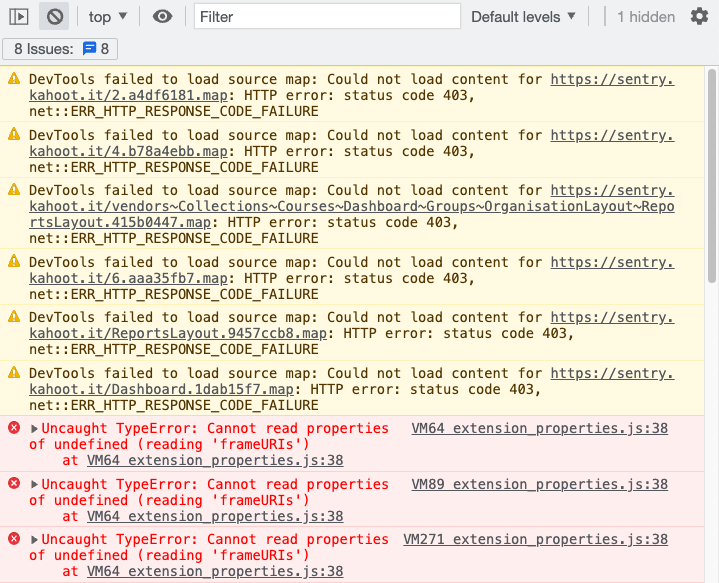
What to look for in the console
Warnings are typically not a concern. Something may not be quite right, but the web page should function properly. What’s of most concern are errors. These indicate where a specific function failed.
Often, errors in the console are comprised of generic, scripted statements with some cryptic details. If the error you see is not offering a clear indication of what the root cause is, please take a screenshot of your console, a screenshot of the error you saw in our platform, as well as download a HAR file. You can send these to our team with a description of what you were trying to do, the steps you followed to accomplish this, and the actual result/error you encountered.
HAR files
HAR stands for Http ARchive. A HAR file is a collection of web activity, including web resources your browser attempted to access and the results of those attempts. These can be especially helpful when you try to view, add, or change something and instead get an error message.
How to download a HAR file
Google provides a free tool to analyze HAR files. That tool includes steps on how to download HAR files when using Edge, Firefox, and Chrome. If you are using any other browser, you may need to search online for steps. But in general, most browsers follow the basic steps below:
- Open your browser console
- Select the “Network” tab
- Reproduce the issue*
- Select “Export as HAR File” (or similar)
How to analyze a HAR file
Google provides a free tool to analyze HAR files. Simply click the “choose file” button and select the .har file you previously downloaded. It may be helpful to then exclude “2xx” and “3xx” HTTP status codes and toggle to “All entries”, as this will show you a clean list of errors.
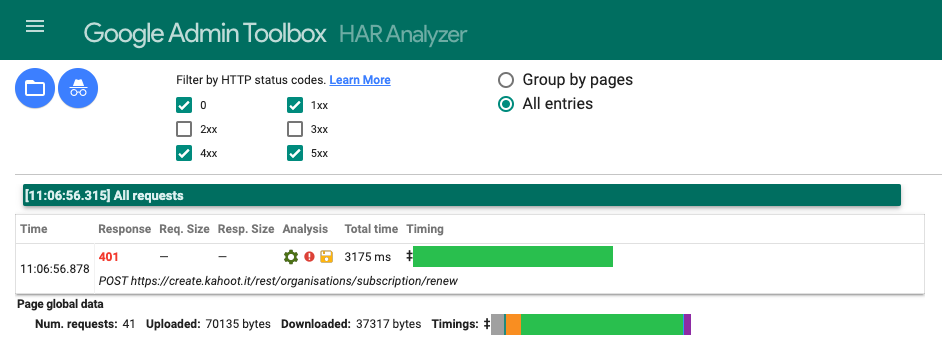
You can click on the time value of an event to see more detail. Select the “Response Content” tab, as it will include information about the reason a server rejected a request.
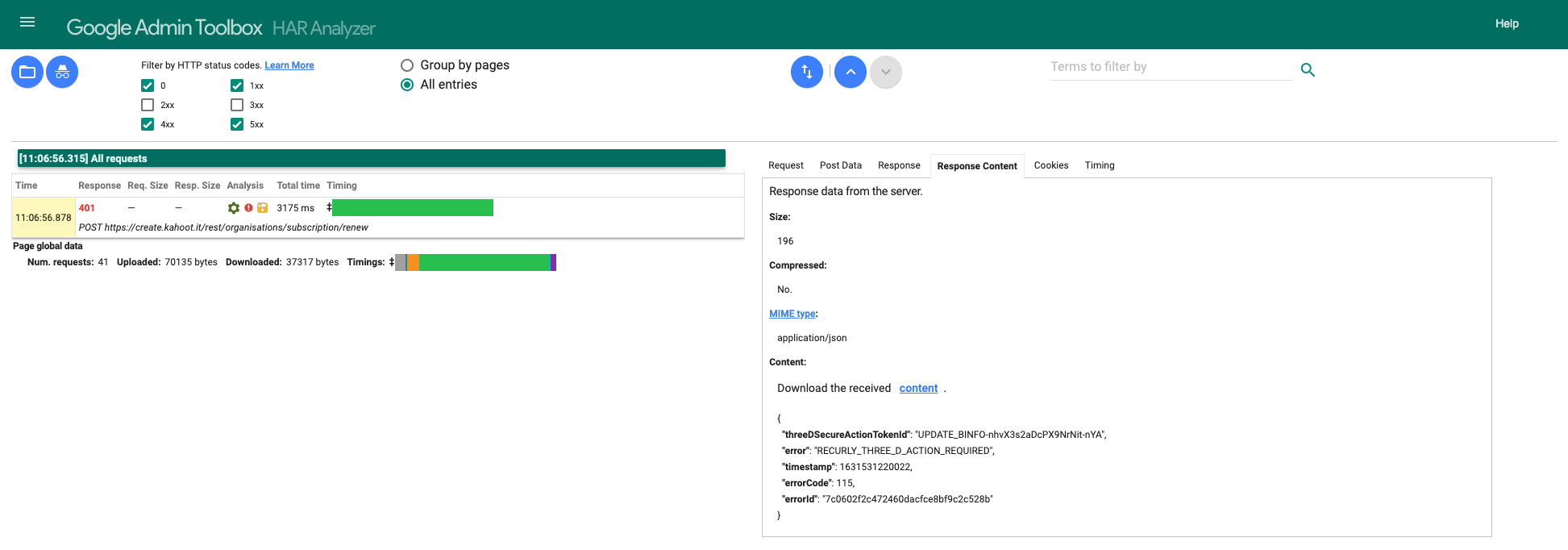
Our team is more than happy to help decipher errors recorded in HAR files. You can send these to our team with a description of what you were trying to do, the steps you followed to accomplish this, and the actual result/error you encountered. Please also include any screenshots you have of the error.