What is team mode?
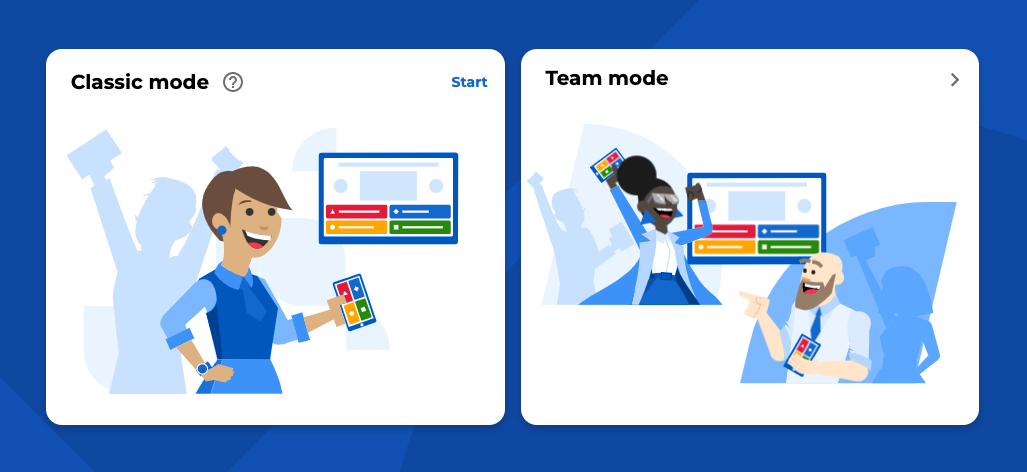
When presenting a live session, you can choose to present the classic "player vs player" mode or one of our "team vs team" modes.
- Player vs Player: Classic - Each player competes for a top spot on the podium.
- Team vs Team: Shared devices - Each team huddles around one device.
- Team vs Team: Personal devices - Each team player uses their own device.
It's not possible to rejoin with the same nickname and accumulated points after leaving the game (e.g. closing the app or the tab; losing connectivity). Players who rejoin the game, need to provide a new nickname and collect points from the beginning.
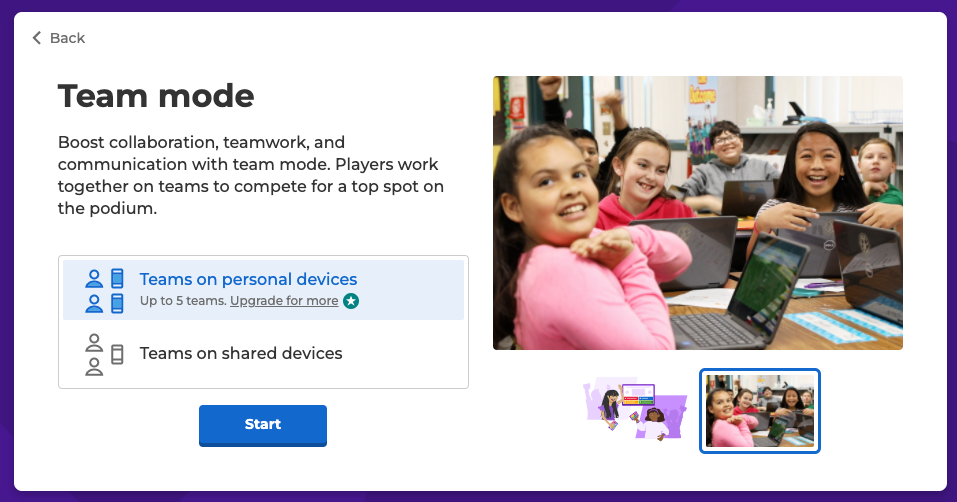
The view for business users:
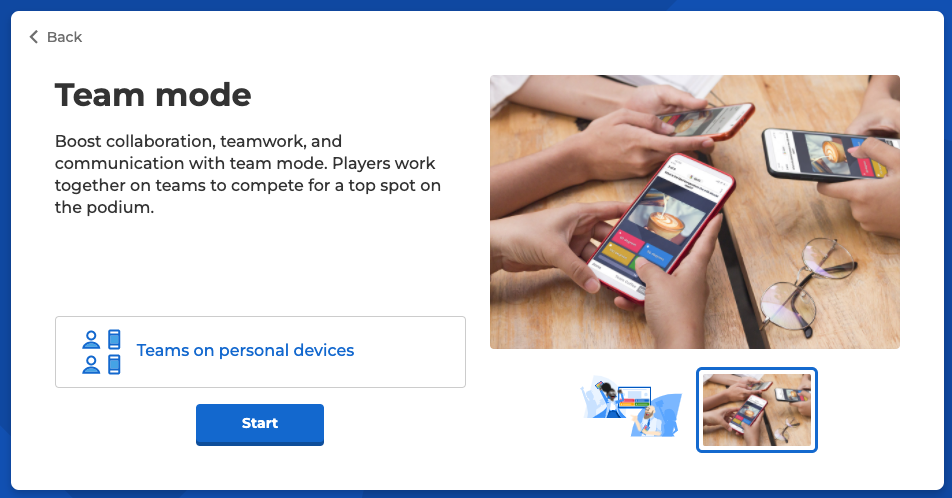
Shared devices
In this mode, each team huddles around one device.
- Each team can nominate a leader to pin into your session and input answers.
- The team leader can also add a nickname for each teammate. These will be shown throughout the game.
- Team talk is enabled to give teams 5 secs to discuss questions. It cannot be disabled in this version of team mode.
Personal devices
In this mode, each team player uses their own device. You can check how many teams with how many players you can have on the relevant pricing page:
- Business - all business plans that include team mode include custom names and lineups.
- Higher ed
- School
- Students
- Home
- Event
You can also learn more about team names, line-ups, and team talk as well as scores and reports.
Team names, line-ups, and team talk
Hosts with plans offering automatic line-ups or team names cannot edit these elements. Team names are represented by different terms related to nature and an illustration.
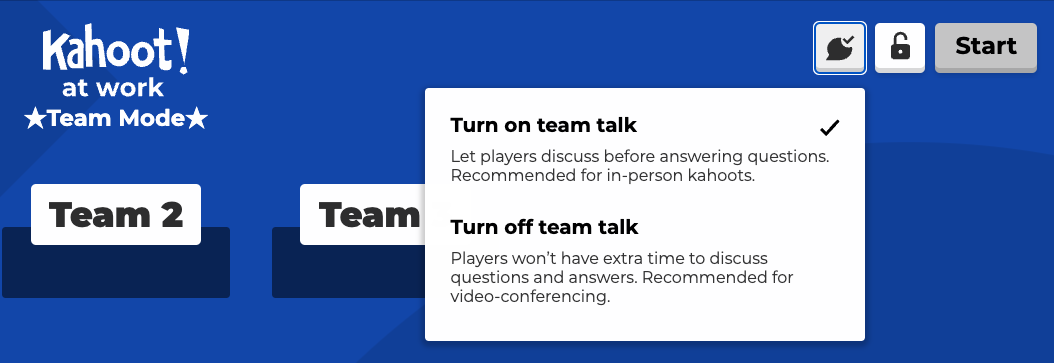
Participants are automatically assigned to teams. Teams are automatically rebalanced if players drop out. Team talk is enabled by default to give teams 5 secs to discuss questions. You can use the team talk button next to the lock and start buttons to disable this (recommended for video conferences).
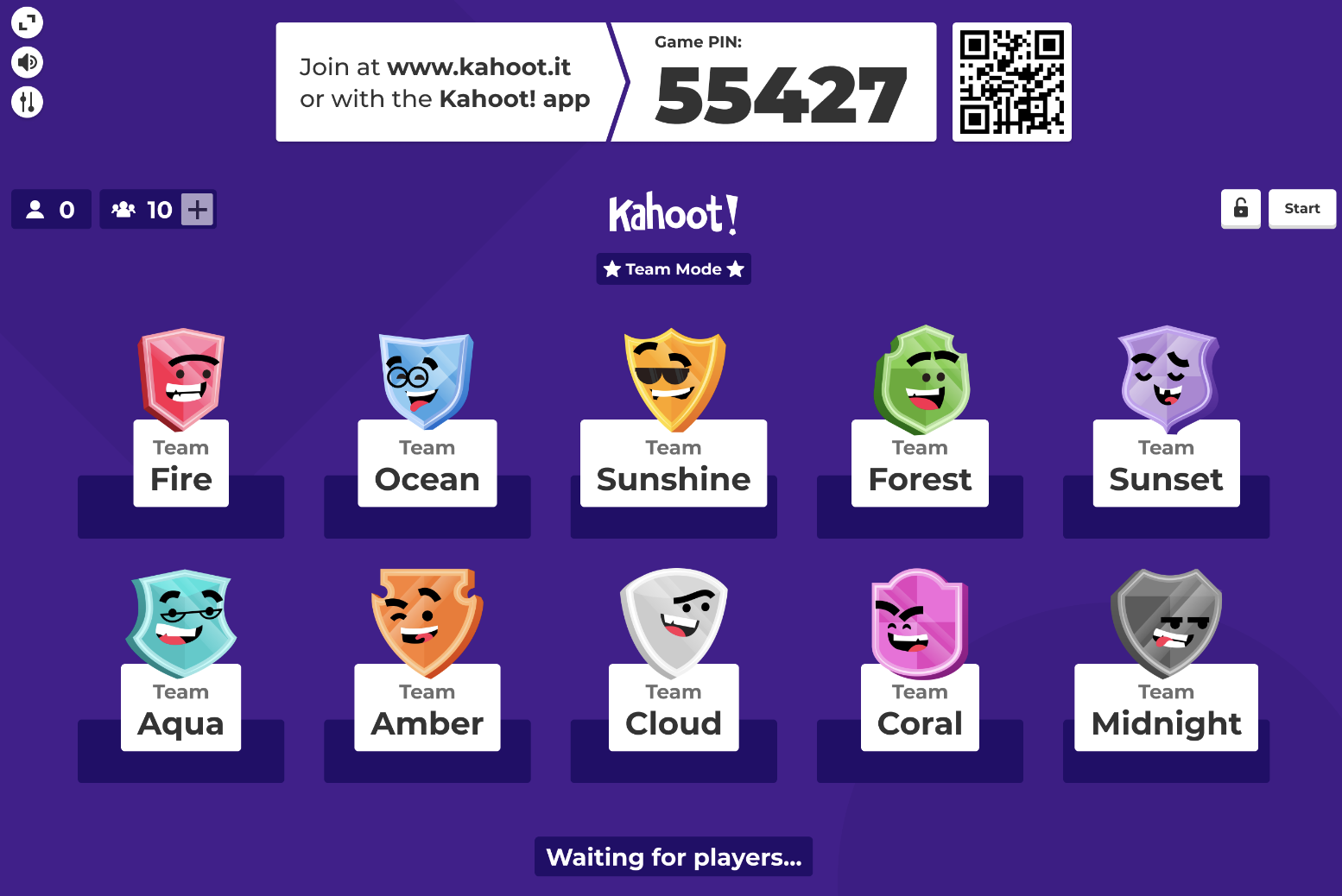
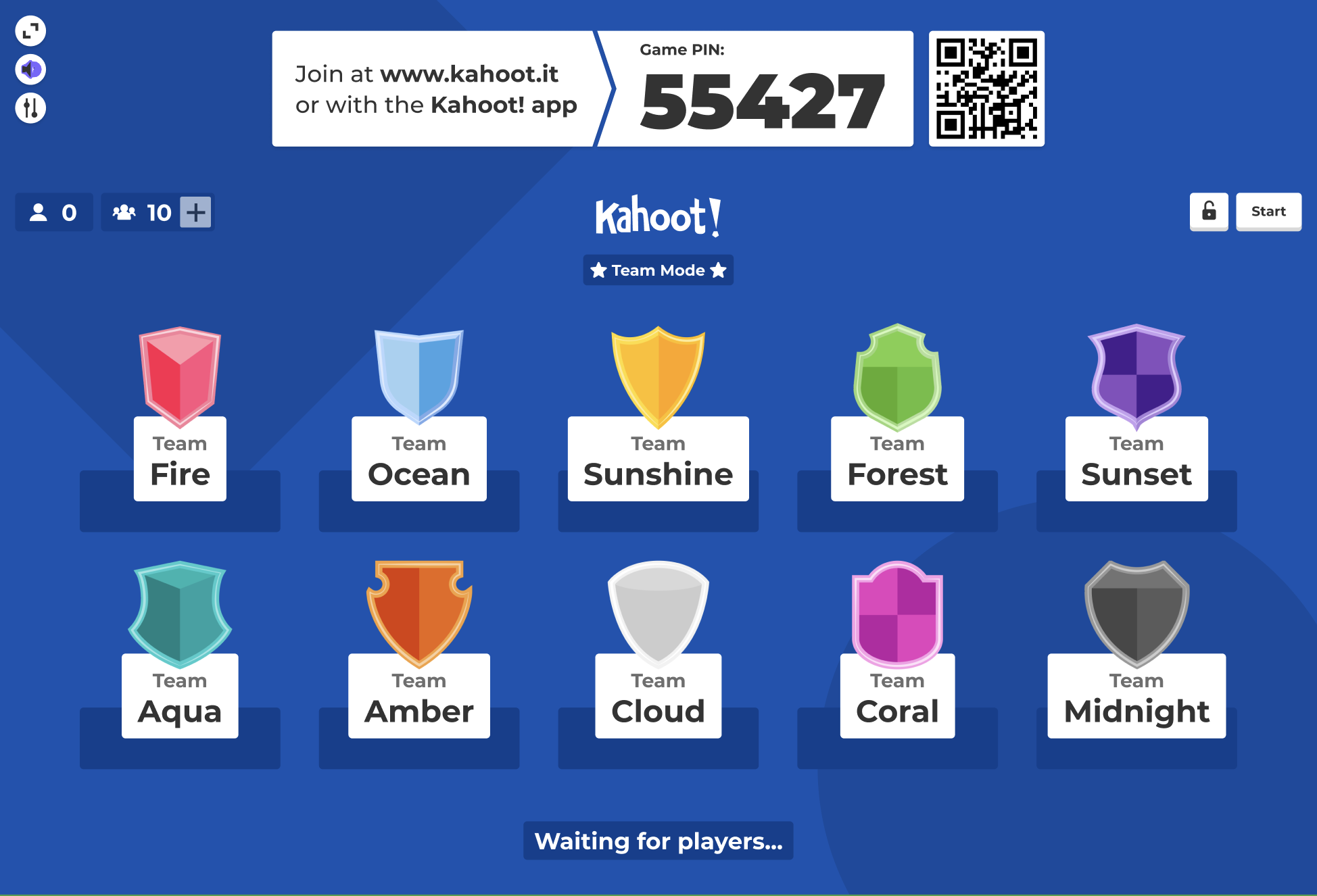
If your plan includes more than 10 teams, you won't see the illustrations.
Illustrations displayed to business users are designed to be more suitable for the professional context.
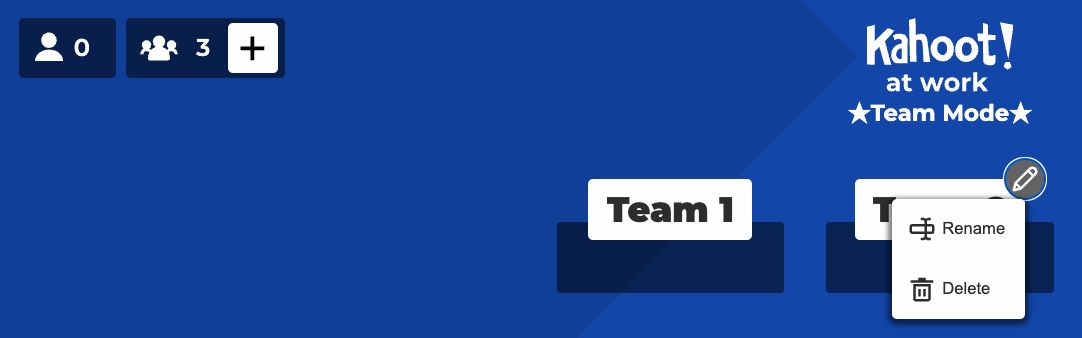
When the host has a plan that includes custom line-ups and team names, participants will see suggested team names. Those can be edited by both players and the host.
- You can click the + button in the top left to add more teams or edit a team to rename or delete it. Once you've edited a team name, players can no longer edit it.
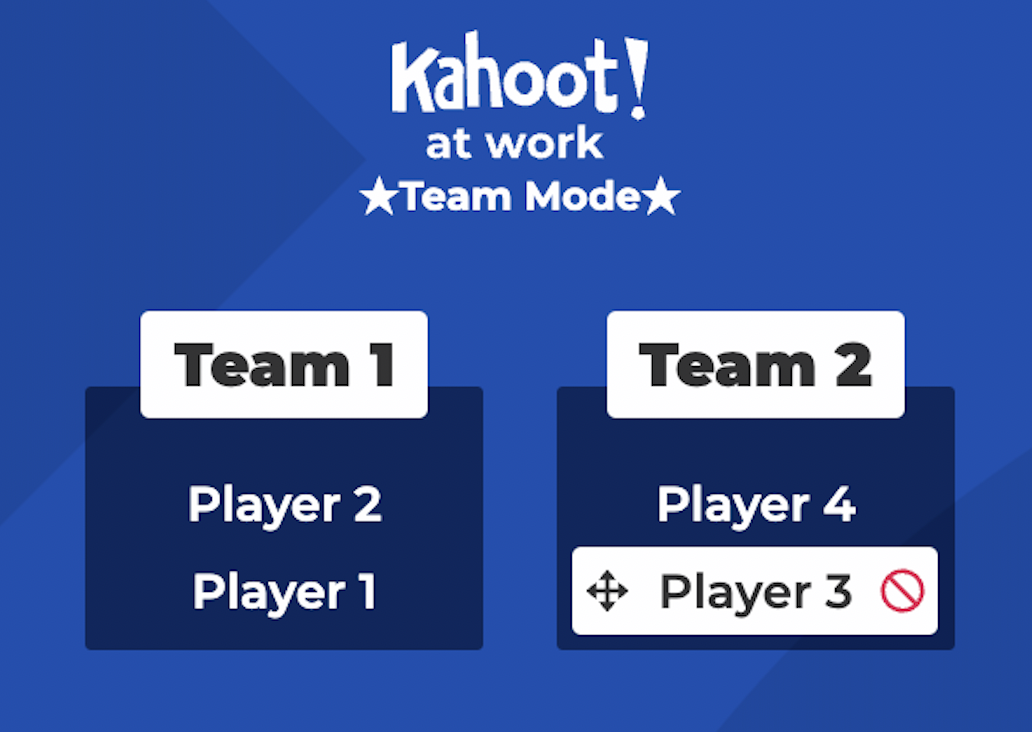
- When players join your kahoot, they can choose which team to join. You can also move players to different teams by dragging a nickname from one team to another. You can also remove them from your game by using the removal button that appears when you hover your cursor over their nickname.
-
Team talk is enabled by default to give teams time to discuss questions. Time allotted ranges from 5-20 seconds, based on the question timer. You can use the team talk button next to the lock and start buttons to disable this (recommended for video conferences).
Scores and reports
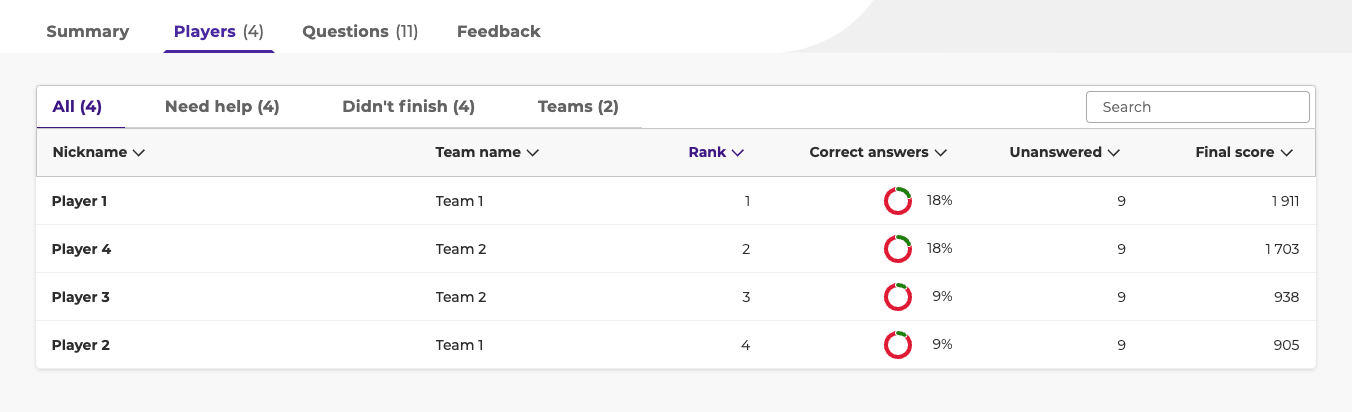
During gameplay, team scores will be visible on scoreboards and the podium. These are an average of team player scores.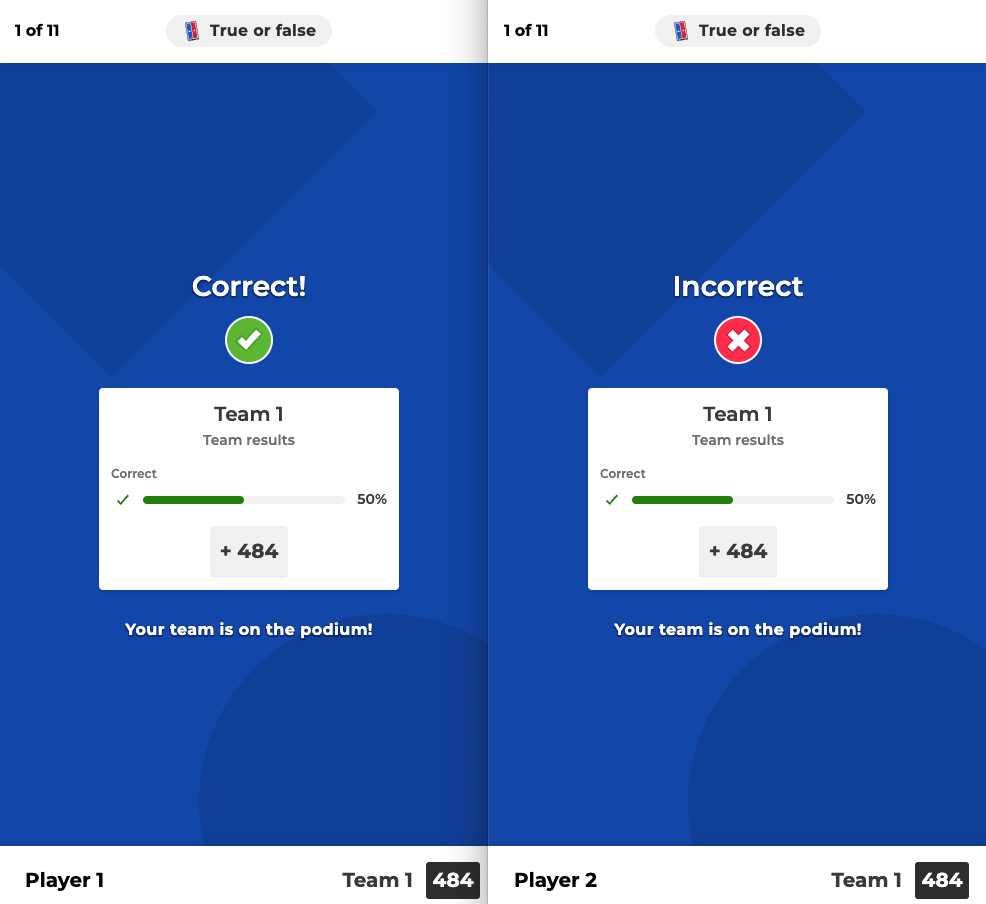
Player scores are not visible during gameplay. You can find them in your report afterward.