After you click the Start button to start hosting a live game, you can access the list of live game settings via the gear wheel icon in the bottom right corner of the host's screen.
The availability of certain settings depends on your subscription level.
- You can modify some of the settings in-between questions.
- Your settings will be saved for next time.
- Certain settings can be adjusted with buttons placed on the host's screen outside of the list.
Game options:
- Show questions & answers
- Player identifier
- Themes
- Game characters
- Personalized learning
- Lobby music
- Nickname generator
- Randomize order of questions
- Randomize order of answers
- Language
- Remove players
- Lock game joining
- 2-Step Join
- Auto-play
- Fulls screen
- Mute, unmute, or adjust the lobby music volume
- Team mode - Team Talk
- End kahoot
Recommended - Show questions & answers
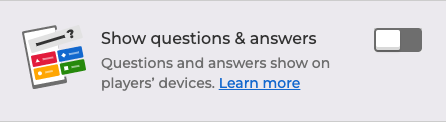
You can enable this game option for all players when you’re hosting a live kahoot in person or virtually. Once it’s on, the players will be able to see questions and answers on their devices where they can directly submit responses. It may come especially useful when your players find it problematic to use an additional device to view the host's screen.
It’s available for free for all Kahoot! users.
Recommended - Player identifier
The player identifier is a new feature that allows tracking player performance across multiple games. Once you or your team have hosted multiple games with player identifier on, you’ll be able to combine reports into one. Learn more about it here.
Recommended - Themes
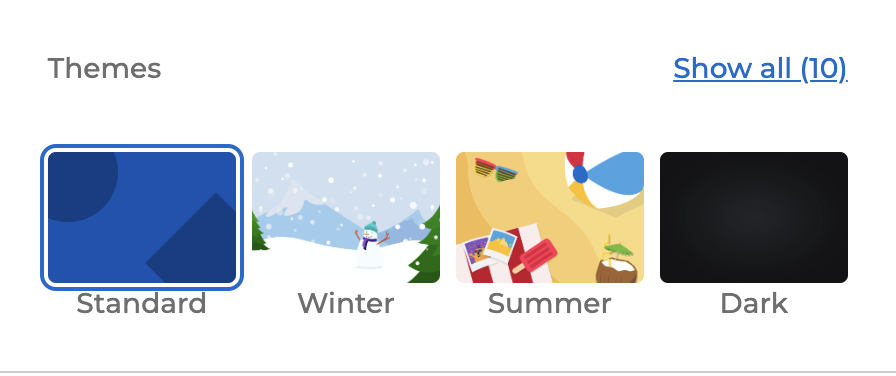
The creator can select the default theme for a game when editing in the kahoot creator but the host can also change it in the settings of a game. This section displays both pre-made themes and your own themes (if your subscription includes this feature). Read more about themes here.
Game characters
When this option is enabled, the players can choose and customize how they are presented throughout the game. Read more about it here.
Recommended - Personalized learning
Personalized learning uses proven learning methods such as spacing and testing to help learners retain information and master content. After a live game, our Android or iOS mobile app will encourage players to repeat questions they got wrong. Learn more about it here.
General - Lobby music
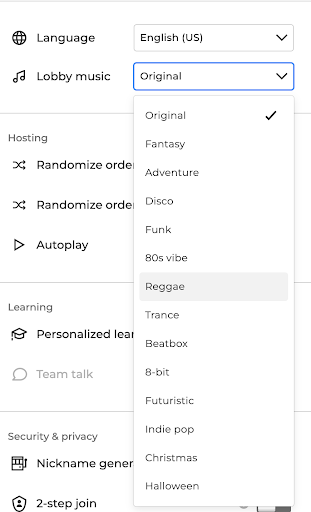
Occasionally, we will change the default lobby music to one of our many awesome tracks (like during Halloween or Christmas).
- If you’d prefer, you can always change back to the “Original” track during these times.
Simply open the lobby music drop down and select your preferred track. Use the play button next to a track to hear a preview of it.
General - Nickname generator
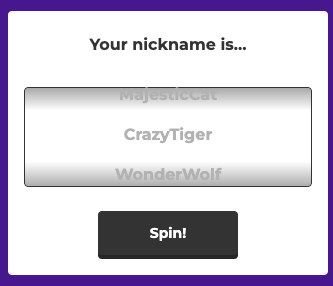
Get in the game fast! Our name generator will choose nicknames for players.
- Players click or tap “Spin!” on their devices to generate a nickname.
- They can spin up to three times.
General - Randomize the order of questions
Toggle this on to randomize when each question is asked.
You can’t randomize question order if the kahoot includes slides.
General - Randomize the order of answers
Toggle this on to randomize how answers are arranged on the screen.
General - Language
You can select the language in which you and your players will see the instructions and interface. This will not alter the language of your game’s content. We do not offer a built-in translation tool that would translate your questions and answers.
Remove players
You can click someone’s nickname on the host's lobby screen to kick them the your game. You can remove players only before starting the gameplay.

Lock game joining
To prevent any more players from joining, you can use the lock option next to the start button.
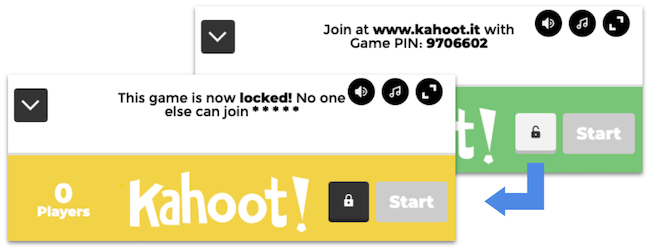
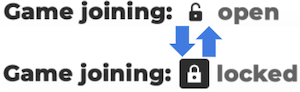
This can also be toggled anytime during gameplay at the bottom of the screen.
Advanced - 2-Step Join
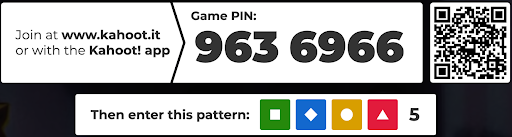
Sometimes players might get a little too playful and share your game PIN with others who aren’t actually in the room. Turn this on to ensure that only people who can see your PIN are able to join.
- After entering your PIN, players must also click or tap four buttons in the pattern shown on your screen.
- The pattern changes every seven seconds.
Advanced - Auto-play
Want your game to progress on its own? Turning this option on is ideal for setting up self-operating kiosks or an auto-piloted training activity!
- The game will auto-start if at least one player has joined and 15 seconds elapse without any more players joining.
- Results and leaderboard screens each display for five seconds.
- Once the game is over, it will restart or play the next game in your playlist.
Fullscreen
To hide your browser interface, you can click the full screen button on the right side of the screen.

Mute, unmute, or adjust the lobby music volume
If there is no lobby video, then you can adjust the lobby music volume by clicking the volume button on the right side of the screen.

Team mode - Team Talk
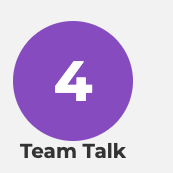
If you select the Team Mode option you can give your teams a chance to discuss their responses by enabling the “Team Talk” option. After every question is displayed, before teams can submit their answers, there will be a short moment for them to brainstorm. You will be able to see the countdown on the left side of your screen.
End kahoot
If you need to finish the game before going through all the questions, go to settings and scroll down. At the bottom of the settings panel, you will find the option that will take you directly to the podium.