
Shortcuts:
How to add kahoots to a workspace
Kahoots stored in the shared folder of a workspace can be edited by any member of the workspace unless the creator, owner, or admin lock editing access to a game.
Make sure your games are visible to your team. You can add kahoots to a workspace through the kahoot creator and the Library tab.
In kahoot creator
Go to your workspace and start creating the kahoot from there. A kahoot created in the workspace will by default be visible to all the team members.
-
Click Settings.

-
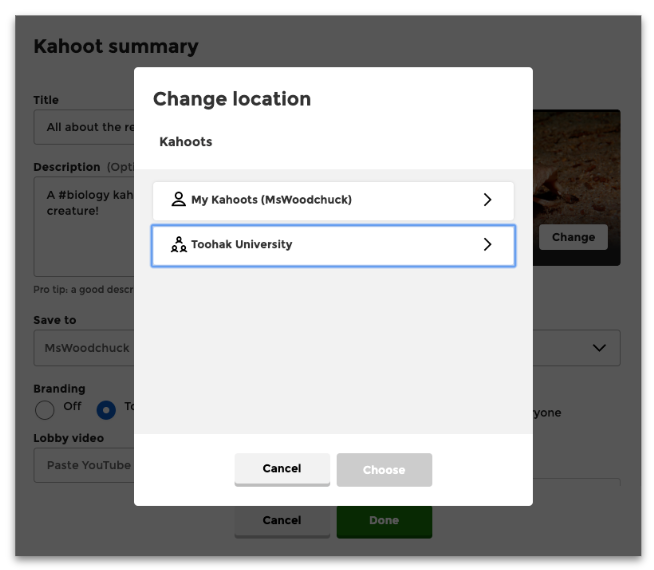
Click Change.

- Choose the name of your workspace, or a folder in your workspace.
In Library tab
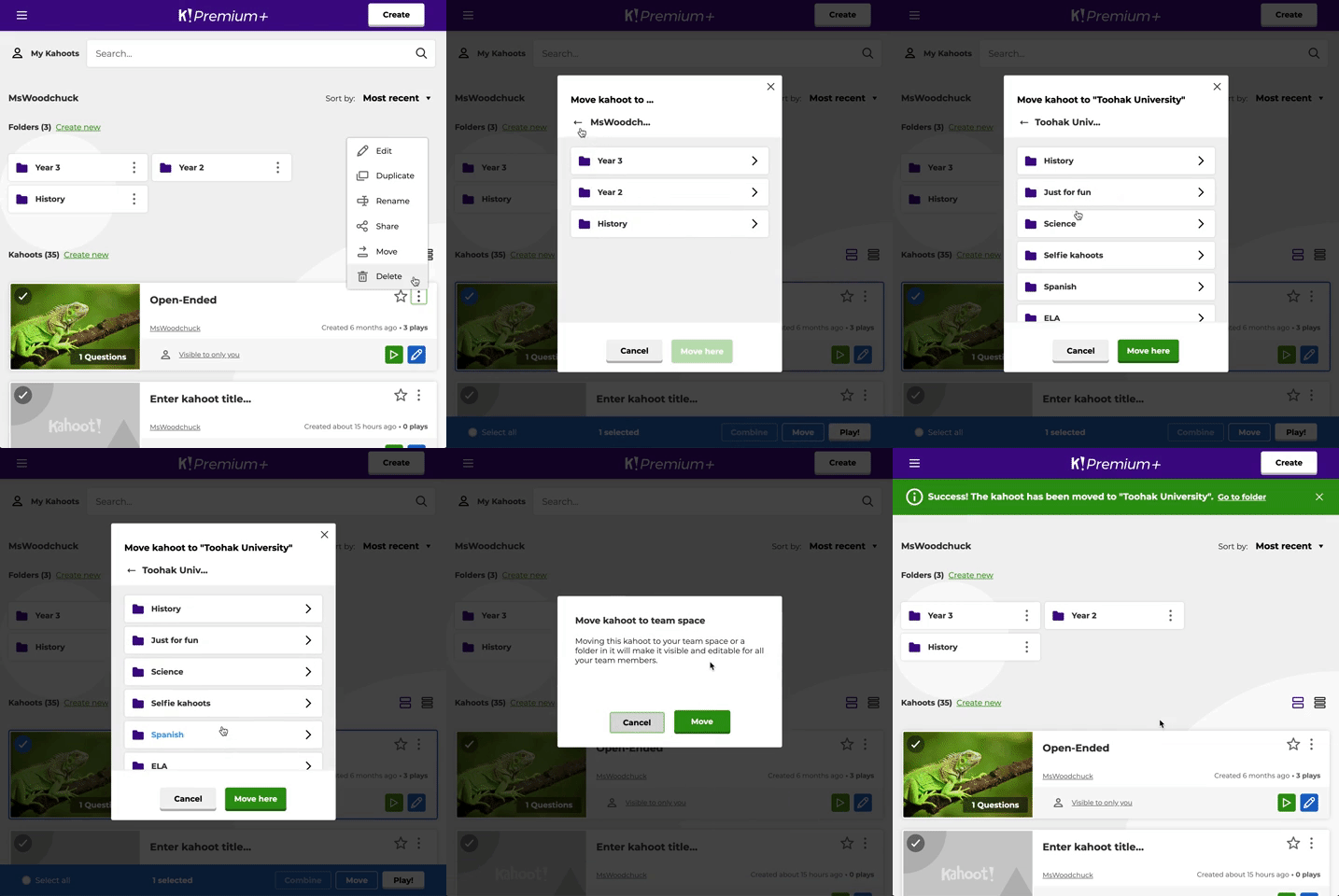
Move your kahoot from My Kahoots to your workspace kahoots by clicking on options [ ⋮ ]. You can choose a specific folder to move the kahoot to. Read more here.
How to lock and unlock a kahoot
- If you want to prevent other workspace members from editing your kahoot stored in the shared folder, you can click the kahoot’s options [ ⋮ ] button and choose the Lock option.
- If you want to give your workspace members editing access to your kahoot, you can simply click Unlock.
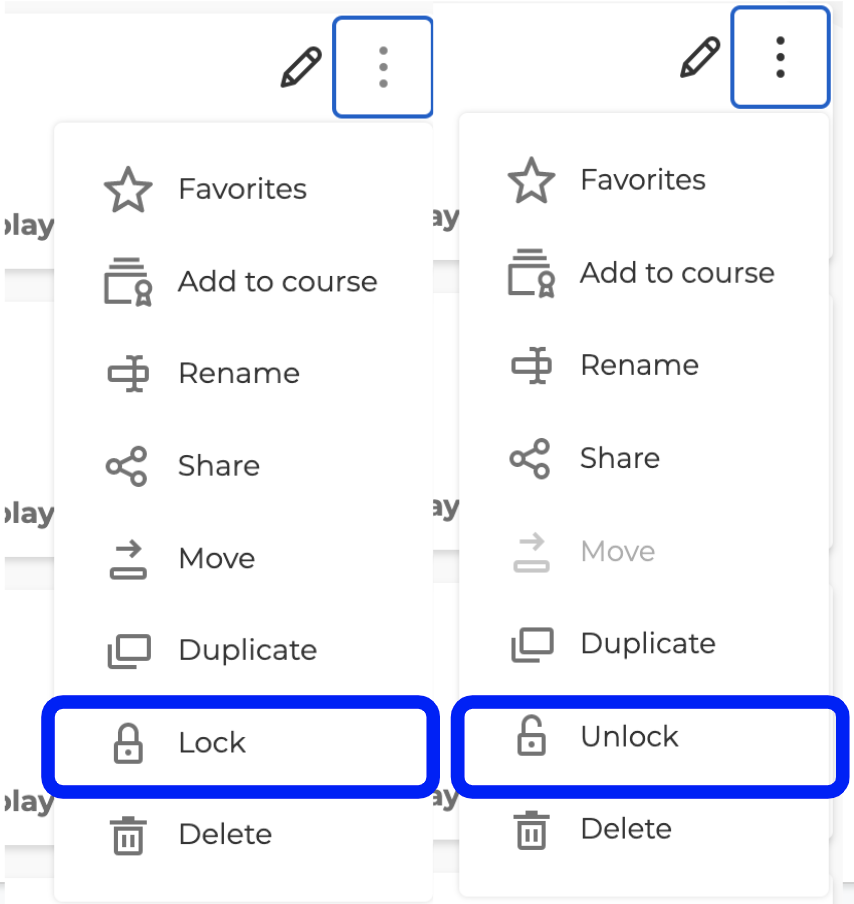
NOTE: The team owner or admins can lock/unlock any kahoot visible to their workspace. Members can only lock/unlock their own kahoots in the workspace.